Managing a Studio organisation
This content is intended for Studio organisation admins only.
Effective user management is critical to maintaining security, governance, and operational efficiency in your Studio organisation. As an organisation admin, you control who has access to your clinical data and tools. User management allows you to:
- Maintain security and compliance by controlling access to your Studio environment and ensuring only authorised team members can view sensitive clinical information
- Streamline onboarding by quickly adding new team members and automatically creating accounts without manual intervention
- Organize team structure by assigning appropriate roles and permissions based on job responsibilities
- Manage project assignments by controlling which team members can access specific projects and in what capacity
- Support governance by deactivating access when team members leave or change roles, ensuring data protection and audit compliance
Organisation admins have an extra item in Administration called User management. This is where you can manage access to your Studio organisation, including:
- Add and manage user accounts
- Manage projects membership
Add users to the organisation
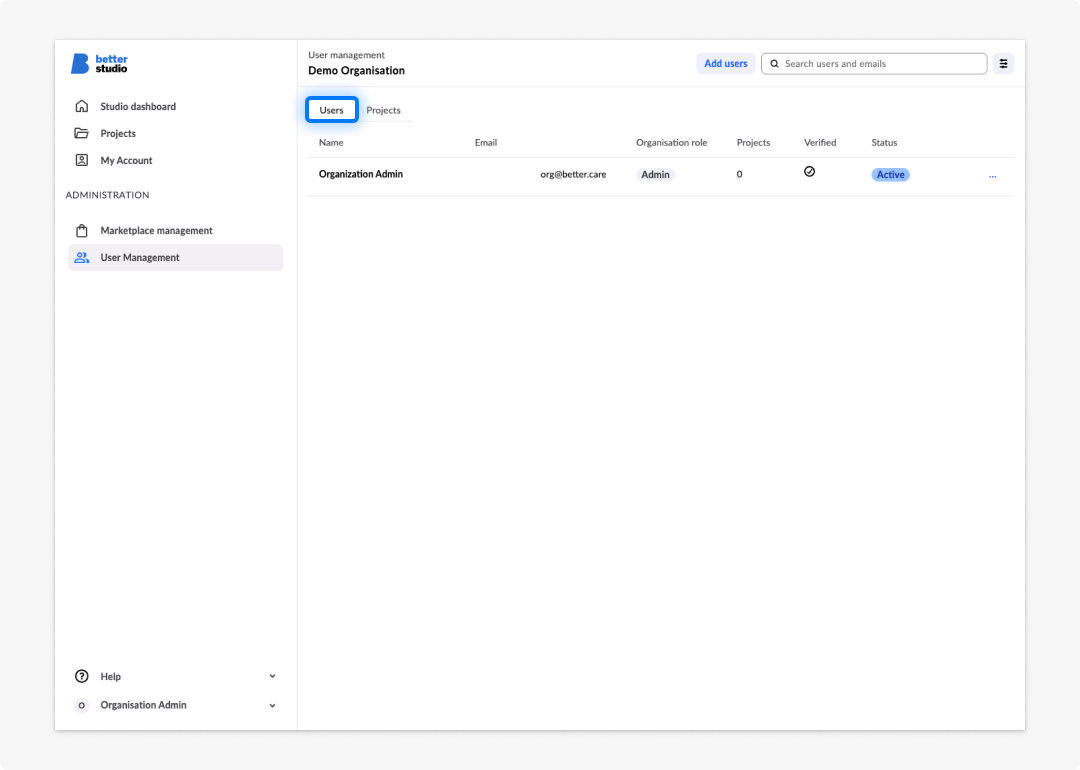
In the Users tab you can see all the user accounts added to your organisation. As an organisation admin, you can add existing Studio users to the organisation, or create new ones by clicking on the Add users button on the top right, next to the search bar.
In the dialogue enter the following details:
- User email
- First and last name
- Role in the organisation: User or Admin
You can add as many accounts as you need by clicking on the Additional user button, and then repeat the process with adding user account details.
In case a specific user doesn't have a Studio user account, by adding them to the organisation you will automatically create a new account. The user will be notified via email that a new account was created for them. They will need to validate their account in order to gain access to Studio.
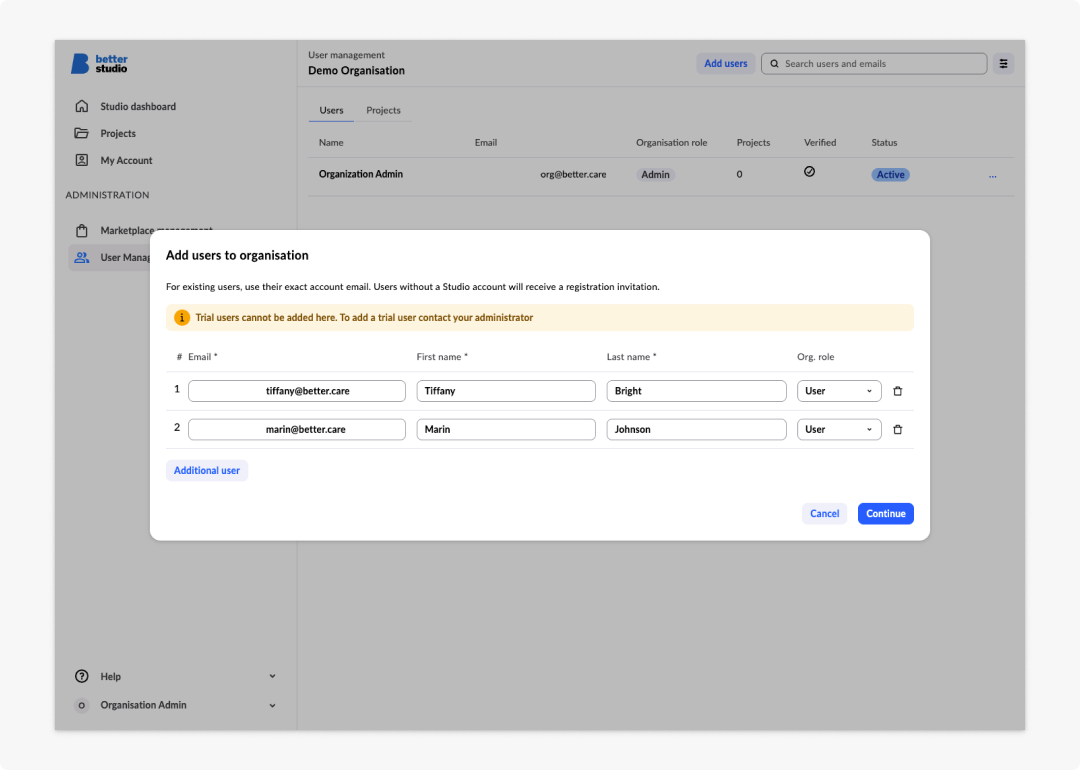
Trial users cannot be added to the organisation. In case the account you want to add already exists as a trial account, please contact support.
Manage user accounts
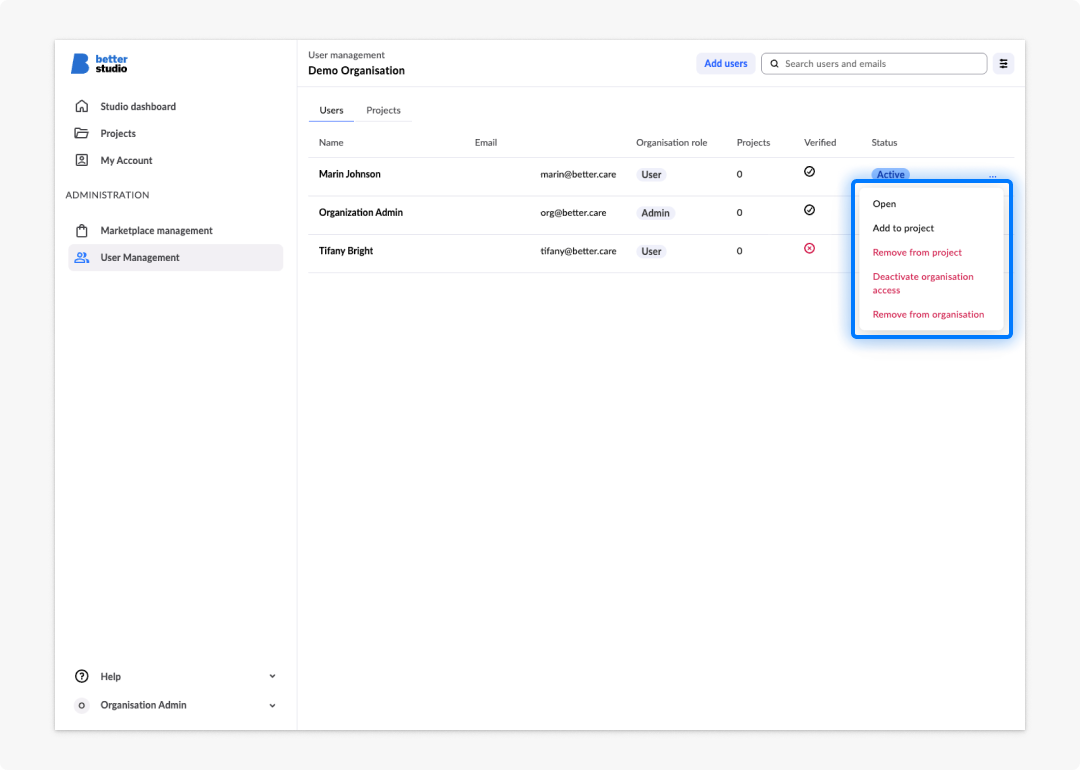
An organisation admin can edit user accounts within their organisation permissions, including:
- Adding a user to a project
- Removing a user from a project
- Deactivating user access to all projects in the organisation
- Removing a user account from the organisation
Projects can be added to the organisation by project owners or organisation admins that have admin membership on the project. Once a project is added, organisation admins can manage membership along with project admins. For more details, check Move project to organisation.
Manage projects membership
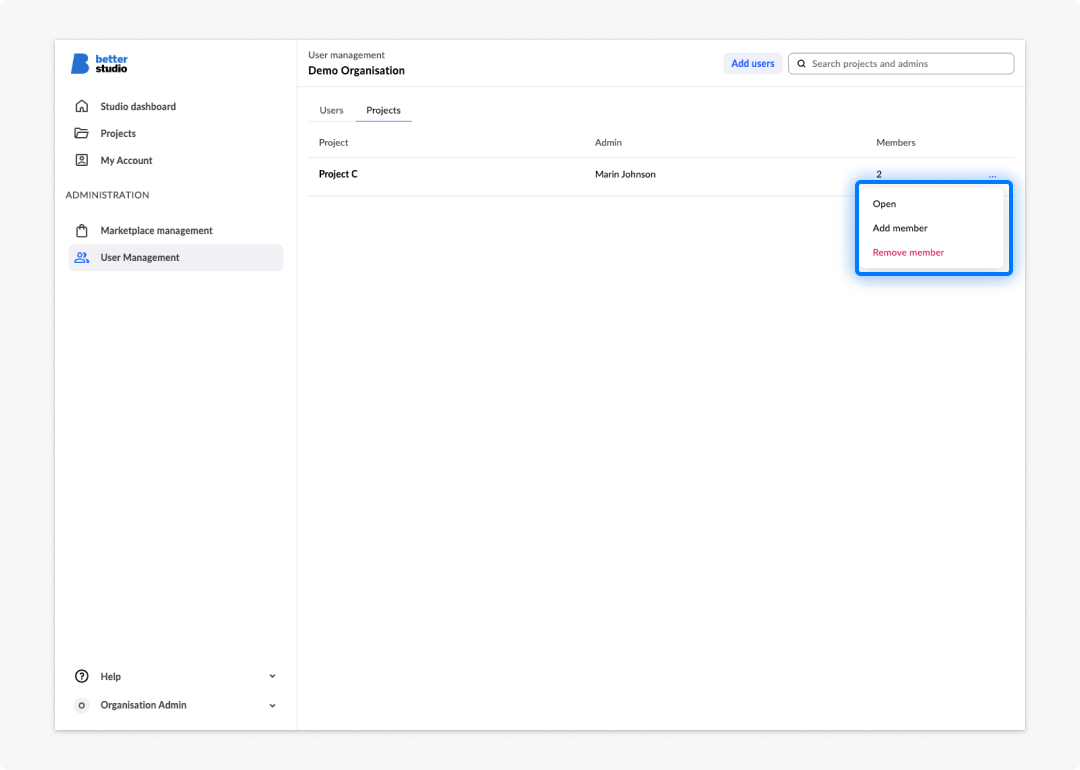
In the Projects tab you can see all the projects moved to your organisation.
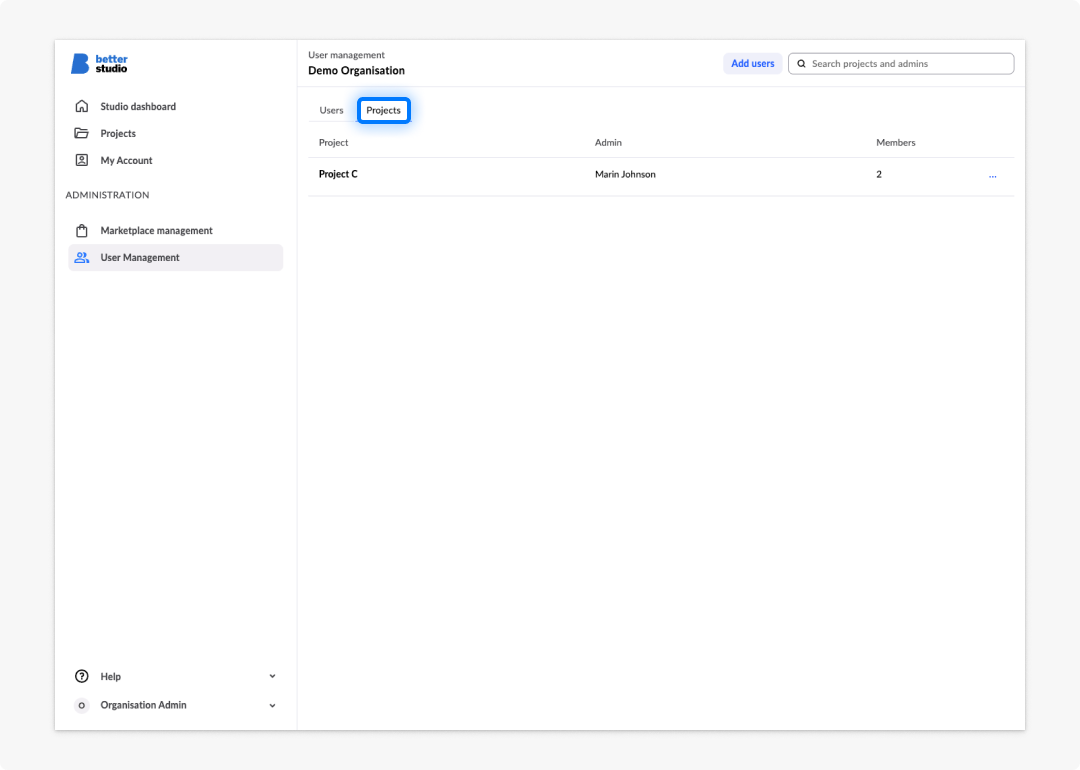
When a project is moved to the organisation, all members are automatically added to the organisation with a User role. Removing those accounts from the organisation will suspend their access to the project.
An organisation admin can change membership on the project, including:
- Change project membership role to Admin or Member
- Add new members to the project
- Remove or suspend user access to the project