Form activation
This content is intended for advanced Studio users.
Activation marks a specific version of a form as the current production version. Once activated, that version can be identified and loaded by Form renderer and other applications (including Better Portal) that consume forms from your EHR Server.
For a beginner-level walkthrough of activating your first form, see the Start here - Test and activate your form section.
Activation basics
Studio supports two methods for activating a form. Both are technically valid. The method you use may depend on your environment, workflow, or organisational preference.
Method 1: Activate checkbox (recommended)
When saving a new form version in Form builder, the save dialogue includes an Activate checkbox. Ticking this checkbox marks the saved version as active immediately on save. This is the simplest and most direct approach and is recommended for most users.
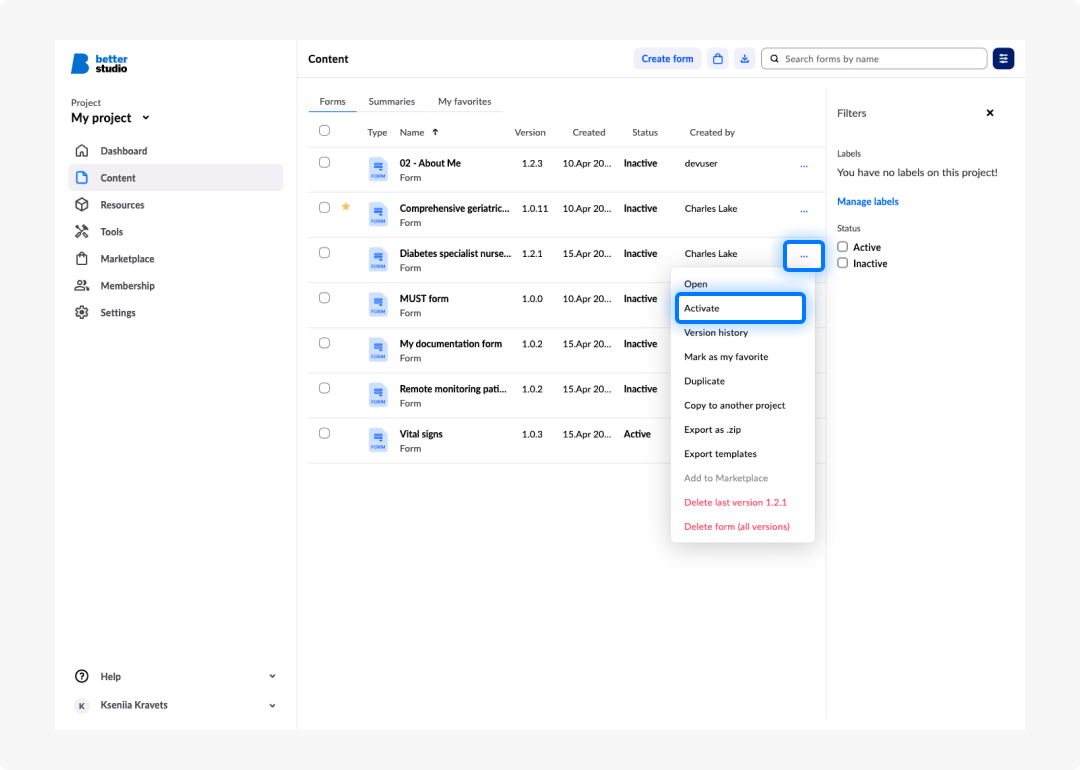
Method 2: Form tag (_form_status:ACTIVE)
You can also activate a form by adding the _form_status:ACTIVE tag via the Form tags field in the Form builder property panel. This is an older, still-supported method.
It is useful in automated deployment workflows where form status is managed programmatically, or in environments where the save dialogue method is not available.
Both methods have the same effect. The form version is marked as active and can be identified as such by Form renderer and consuming applications.
Activation differences: Cloud, on-premises, and trial tier
Activation behaviour can vary depending on how Studio is deployed in your organisation.
Frequently asked questions (FAQs)
What are the two supported methods for activating a form in Studio?
The first and recommended method is to tick the Activate checkbox in the save dialogue when saving a new form version in Form Builder — this marks the version as active immediately on save. The second method is to manually add the _form_status:ACTIVE tag via the Form tags field in the Form Builder property panel. Both methods have the same effect.
When would I use the form tag method instead of the Activate checkbox?
The form tag method is useful in automated deployment workflows where form status is managed programmatically, or in environments where the save dialogue method is not available.
Can more than one version of a form be active at the same time?
No. Only one version of a given form should be active at any one time in a given environment. Activating a new version should supersede the previous one, though the exact behaviour depends on your environment setup.
How do I deactivate a form?
Remove the active status or tag from the form version. If you are replacing it with a new version, activate the replacement first to ensure continuity.
Can different environments have different active versions of the same form?
Yes. Separate development, staging, and production environments each manage their own active form versions independently.