Test and activate your form
Content intended for beginners. No prior experience with Better Studio required.
Better Studio gives you two ways to test your form before it goes live:
- Preview is built directly into Form builder and updates in real time as you edit. You have already seen this in action during the BMI example.
- Form playground is a separate Studio tool where you can browse saved form versions, test them as an end user would, and save test compositions to the EHR server.
In this step, you will use both: Preview to do a quick check, and Form playground to do a fuller test and save your first composition.
Quick check: Preview
The Preview screen opens directly from Form builder and reflects your form in real time. You do not need to save or activate your form beforehand.
Here's how you can use it:
- In Form builder, click Preview in the top toolbar.
- A new browser tab will open with the Preview screen.
- Fill in the My vital signs form fields with test values, for example: height 170 cm, weight 60 kg, systolic 120, diastolic 80.
- Check that the BMI calculates correctly and that the form behaves as expected.
The Preview screen has three main areas alongside the form canvas:
- Left panel: Enter an EHR ID to associate a composition with a specific patient record, input form variables, and review form values and previously saved compositions.
- Right panel: Check how the form renders on desktop, tablet, and mobile, change language or date format settings, and adjust other context parameters.
- Toolbar: Here you can validate the form, restore data to defaults, and save a composition.
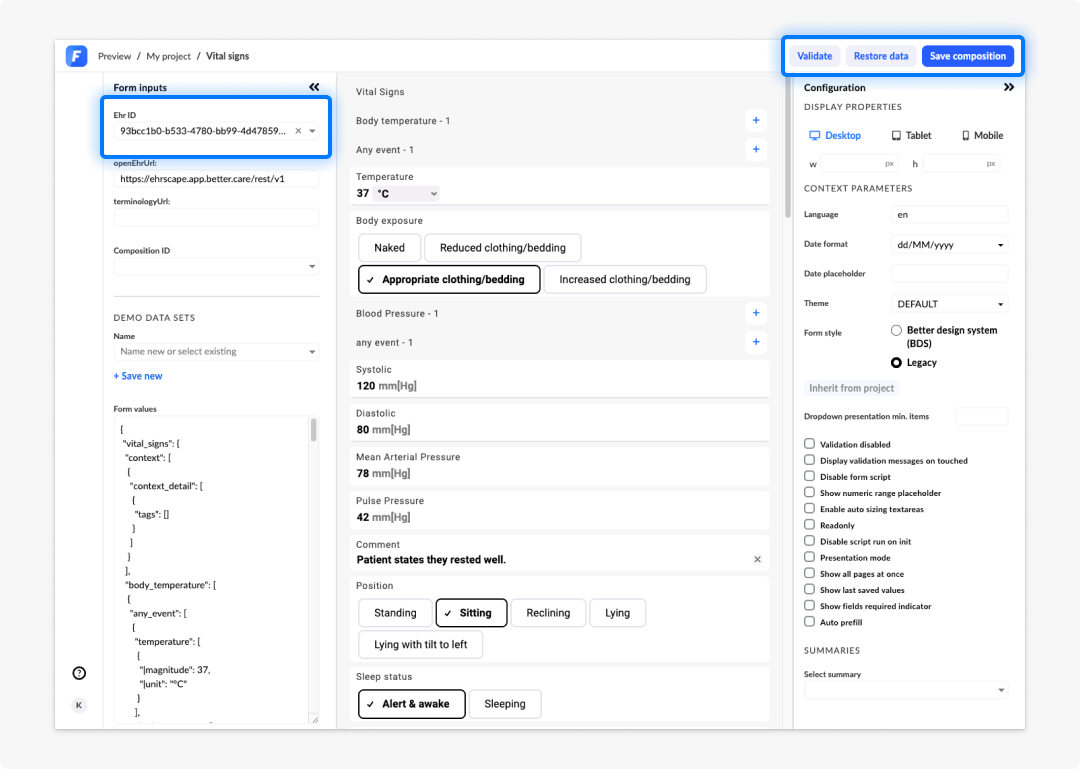
The Preview is live. Every change you make in the editor is reflected in the Preview immediately. This means you do not need to re-open it or refresh.
Test in Form playground
Form playground is Studio's dedicated browsing and testing environment. Unlike Preview, which is tied to the form you are currently editing, Form playground lets you select any saved form version from your project and test it independently.
Here's how you can use it:
- From the left-hand project navigation, select the Tools icon, then Form playground.
- Browse the list of forms and select your My vital signs form.
- Choose the version you want to test from the version selector. Select the latest saved version.
- Fill in the form with test values and validate and save a composition in the same way as in Preview.
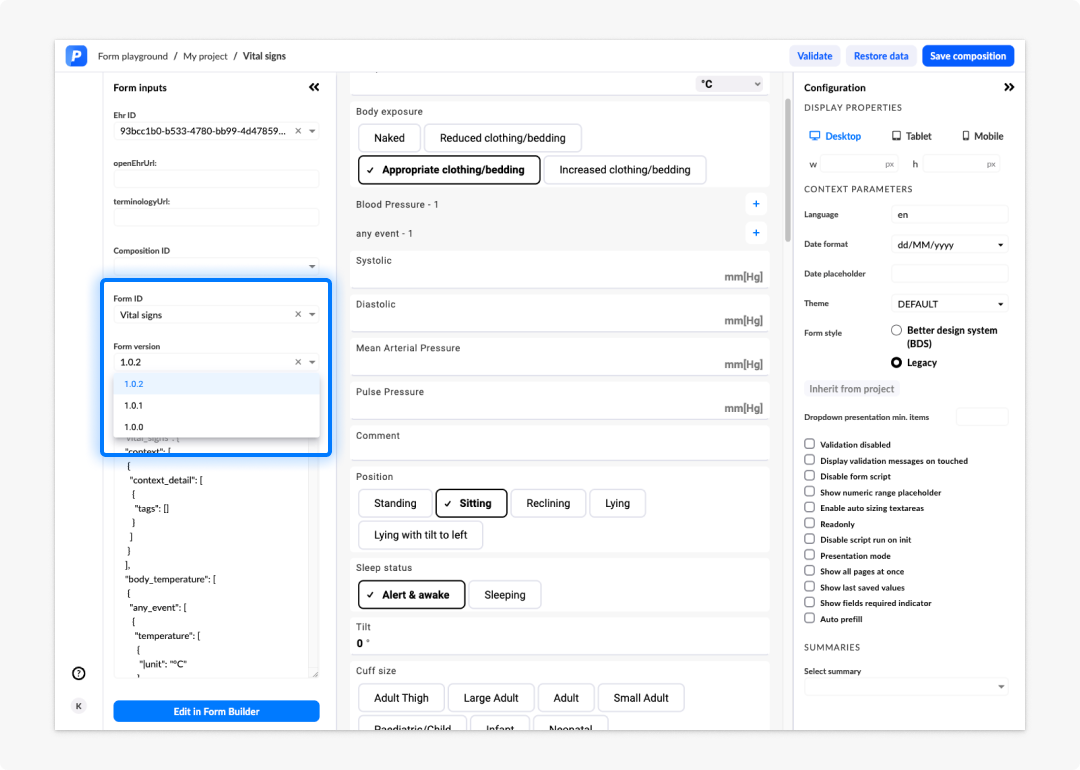
Form playground and Preview share the same functionality. The difference is scope: Preview is always the form you are actively editing. Form playground lets you browse and test any saved version across your project.
Activate your form
Activation marks a specific version of a form as ready for use in a live application. When a form is activated, Studio adds the tag _form_status:ACTIVE to it. Applications built with Form renderer or in Better Portal use this tag to identify which form version to display to users, making activation the single step that takes a form from being a work-in-progress in Studio to being live and usable in your clinical application.
Form activation may vary depending on your specific Studio configuration. Check with your administrator beforehand to make sure.
How to activate a form
There are two ways to activate a form:
- When saving: When you click Save in the Form builder toolbar, the save options window includes a Status option. Tick this checkbox next to the word Activate when saving the version you want to go live.
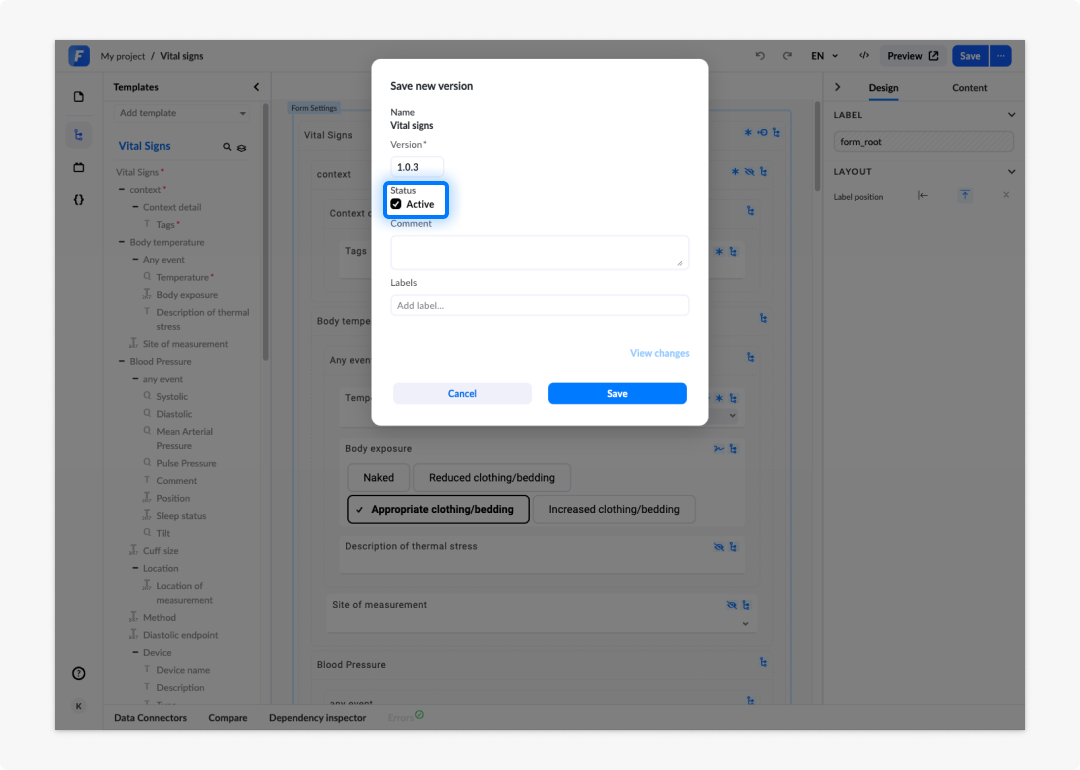
- From the Select screen: In the Form builder Select screen, find your form in the list and click the three dots button on the right. Select Activate from the command list.
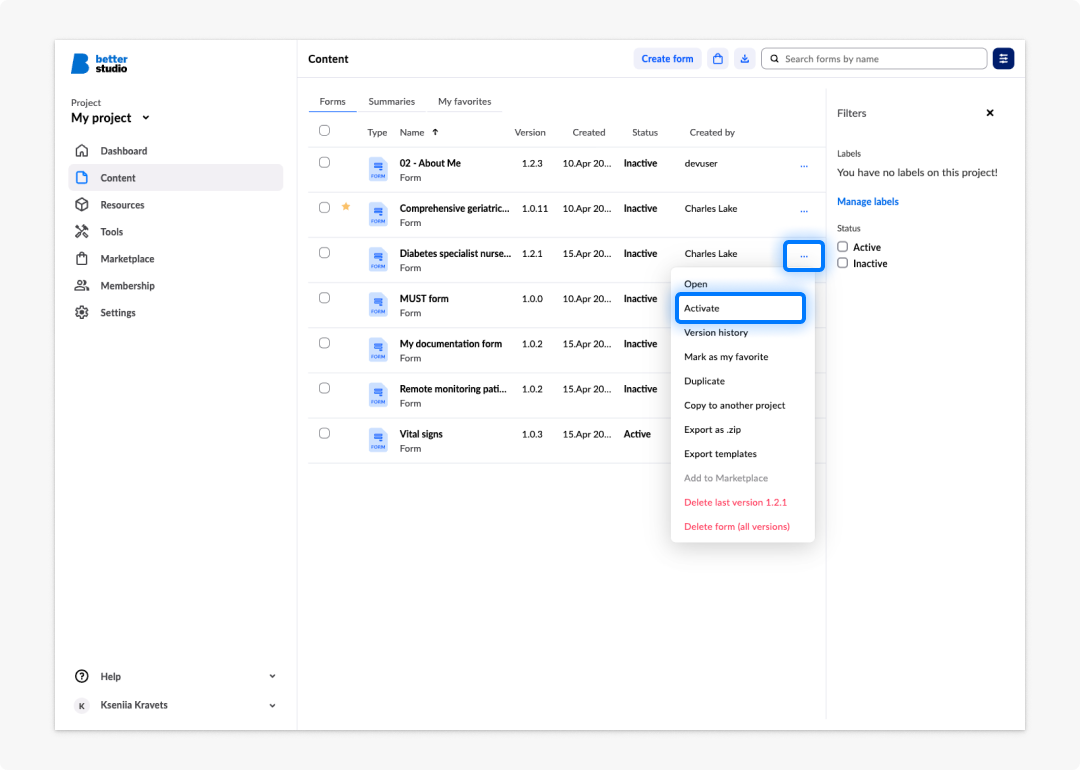
Some Form renderer setups can have the option to add a tag directly in the form's left panel to activate it.
- Navigate to a form and open it in Form builder.
- Click on the left panel and select the Content tab.
- Under Form tags insert the preset tag you use, for example: UserForm for Name and V1 for Value.
- Make sure you save your form to preserve this activation change.
We do not recommend using tags to activate a form. Use the Activate checkbox first and foremost.
Deactivating a form
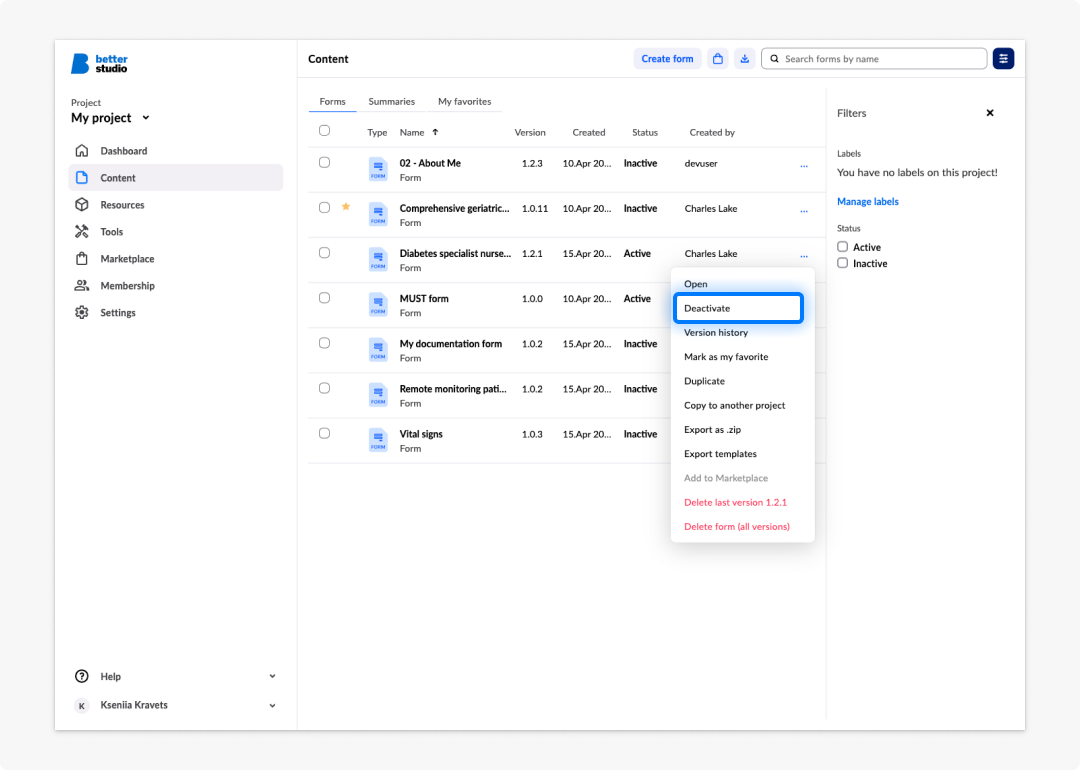
To take a form offline (for example when releasing a new version), click the three dots button next to the form and select Deactivate. You can then activate the new version in its place.
Only one version needs to be active at a time. Your application will pick up whichever version currently carries the _form_status:ACTIVE tag.
Frequently asked questions (FAQs)
What is the difference between Preview and Form playground?
Preview is built directly into Form builder and always reflects the form you are actively editing, updating in real time without needing to save first. Form playground is a separate Studio tool that lets you browse and test any saved form version across your project, independently of what you are currently editing.
What are the three main areas of the Preview screen?
The left panel lets you enter an EHR ID to associate a composition with a patient record, input form variables, and review form values and previously saved compositions. The right panel lets you check how the form renders on desktop, tablet, and mobile, and adjust language, date format, and other context parameters. The toolbar lets you validate the form, restore data to defaults, and save a composition.
What does activating a form do and why is it necessary?
Activation marks a specific version of a form as ready for use in a live application by checking the Activate checkbox (recommended) or adding the tag _form_status:ACTIVE to it. Applications built with Form renderer or in Better Portal use this tag to identify which form version to display to users. A form that has not been activated will not appear in Form renderer or Better Portal, even if it has been saved and tested.
What are the two ways to activate a form in Studio?
When saving, you can tick the Activate checkbox in the save options window in Form Builder. Alternatively, from the Form builder Select screen, you can click the three dots button next to the form and select Activate from the command list.
Can more than one version of a form be active at the same time?
Only one version can be active at a time. Your application will display whichever version is currently checked as Active and/or carries the _form_status:ACTIVE tag. To release a new version, deactivate the current one and activate the new version in its place.