Studio versioning
This content is intended for intermediate to advanced Studio users.
As the Studio team provides regular updates to Studio, keeping up to date with the latest releases is crucial for a fully functioning and operational platform.
When using an older version of Better Studio, do not edit forms that were created or saved in a newer version. Doing so may cause unexpected issues with the form.
The version switcher provides a controlled and transparent way to move between supported Studio versions in production. From version 3.14 onwards, you will see permanent notifications on your dashboard whenever a new major or minor version becomes available, or when support for your current version is about to expire. These alerts make it clear when action is needed, reducing the risk of running on unsupported versions.
How to switch Studio versions
Switching itself happens through a dedicated modal window:
- Navigate to the bottom right corner of Studio and click on your profile icon.
- Click on My Account and find the Studio settings.
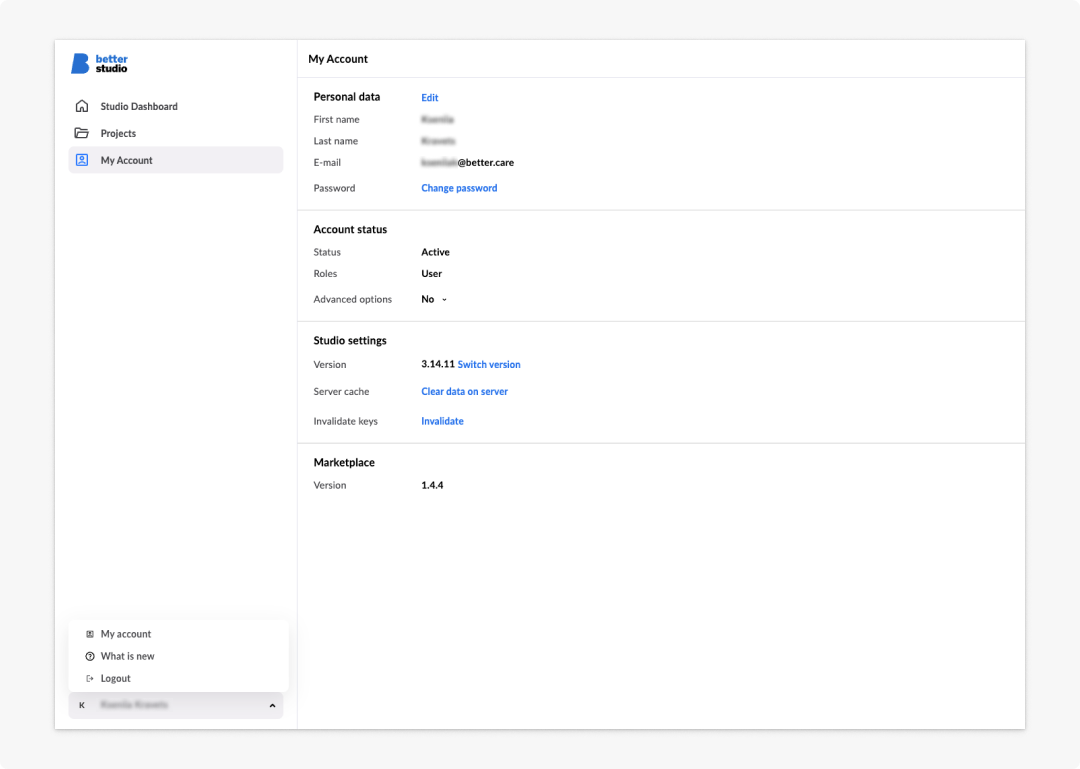
Here you will see what version of Studio you're currently using.
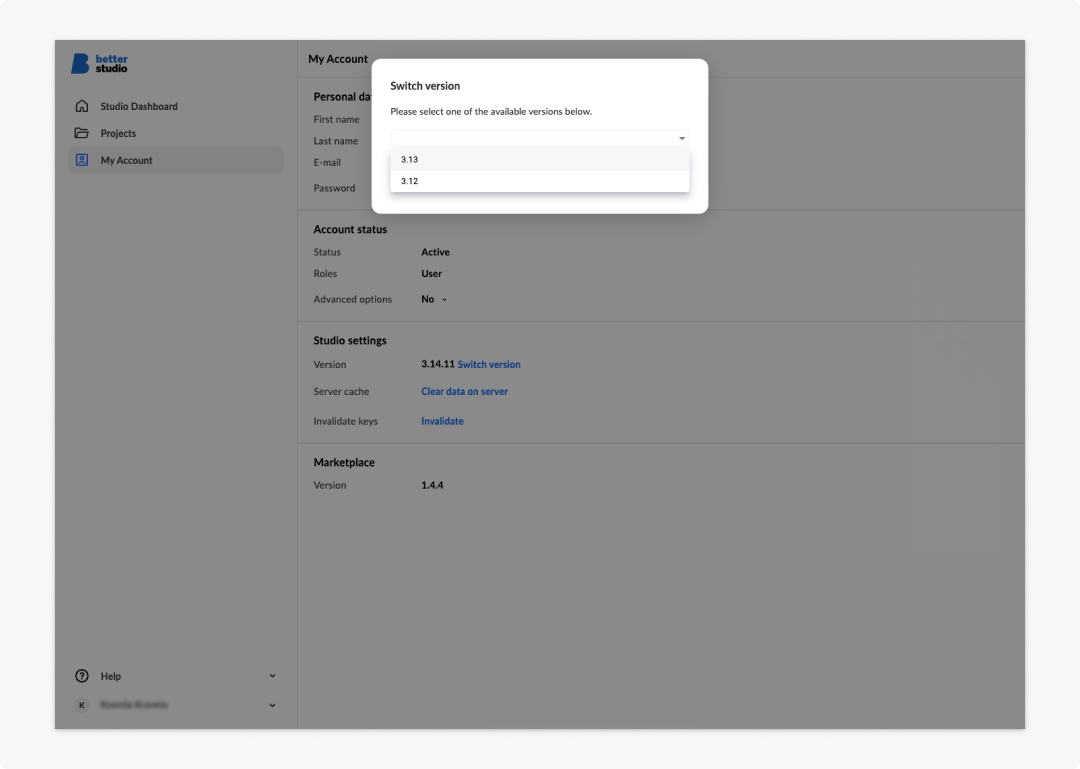
- Click on Switch version to open the version switcher modal.
-
Choose from the dropdown menu the version you want to upgrade (or downgrade) to.
- The latest version is marked as (Latest).
- Older versions display a warning about potential file compatibility issues.
-
Click Switch to confirm.
-
Refresh your browser to apply the change.
Make sure to check if your Studio resources and content will be affected by this switch. If you choose an older version, files created in newer versions may not behave as expected. This safeguard ensures that switching is deliberate, not accidental. Version data is managed through a /settings/versions endpoint and YAML configuration, so environments remain consistent.
When a new version of Better Studio is installed, you’ll see a notification explaining which Form renderer version it supports. If your Form renderer is behind, you can either update it or switch Studio back to a previous version to maintain stability. This transparency helps prevent the common pitfalls of mismatched versions.
Frequently asked questions (FAQs)
How do I know which version of Studio I am currently using?
Go to your profile icon in the bottom right corner of Studio, click My Account, and find Studio settings. Your current version is displayed there.
From which version of Studio is the version switcher available?
The version switcher and dashboard version notifications are available from Studio version 3.14 onwards.
Can I downgrade to an older version of Studio?
Yes. The version switcher allows both upgrades and downgrades. If you select an older version, Studio will display a warning about potential file compatibility issues before you confirm.
What happens to forms created in a newer version if I switch to an older version?
Forms created or saved in a newer version may not behave as expected when opened in an older version. Do not edit those forms until you have switched back to the appropriate version.
How will I know when a new version of Studio is available or when my current version is nearing end of support?
From version 3.14 onwards, Studio displays permanent notifications on your dashboard when a new major or minor version becomes available, or when support for your current version is about to expire.
What should I do if my Form renderer version does not match my Studio version after an upgrade?
When a new version of Studio is installed, a notification will indicate which Form renderer version it supports. You can either update Form renderer to match, or switch Studio back to a previous version to maintain compatibility.
Do I need to do anything after switching versions?
Yes. After confirming the switch, refresh your browser to apply the change.