JavaScript views
This content is intended for advanced Studio users.
JavaScript views extend standard AQL views with the ability to run multiple queries, transform response data, and apply custom logic before returning results. They are the appropriate tool when a single AQL query cannot produce the data structure your form or application requires.
JavaScript views require JavaScript programming knowledge. If your use case can be solved with a single AQL query, use a standard view instead. Always test and verify JavaScript view output before connecting it to a production form.
When to use JavaScript views
Use a JavaScript view when you need to:
- Combine data from multiple AQL queries into a single response
- Transform or reshape query results before they reach the form (example: Converting units or renaming fields.)
- Apply conditional logic to query results
- Return a custom data structure that a standard AQL query cannot express directly
Creating a JavaScript view
To create a JavaScript view:
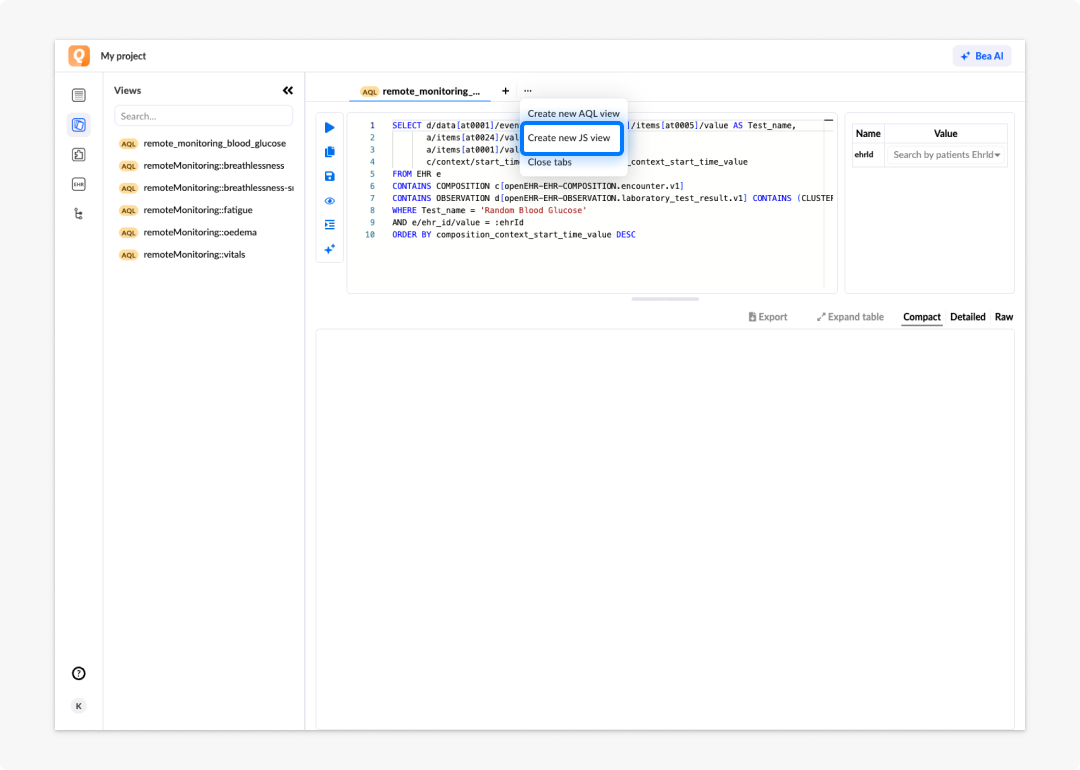
- In the AQL builder, click the elipsis (...) menu button.
- Select Create new JS view.
- Studio generates a boilerplate code in the query editor as a starting point.
- Write your JavaScript using the Ehr API methods described below.
- Run the view to test it and review the results.
- Save the view using the Save button.
Boilerplate code structure
When you create a new JavaScript view, Studio inserts the following boilerplate:
function compute(ctx, src) {
var promises = {
compositions: Ehr.query({
aql: 'SELECT c/name/value as compositionName, c/uid/value as compositionUid ' +
'FROM EHR e ' +
'CONTAINS COMPOSITION c ' +
'WHERE e/ehr_id/value = :ehrId ' +
'FETCH 5',
params: ctx.vars,
initvalue: [],
callback: function (out, result) {
out.push({ name: result['compositionName'], id: result['compositionUid'] });
}
})
};

var result = {};
Ehr.allhash(promises, function (res) {
result = { compositions: res['compositions'] };
});

return result;
}
All JavaScript views follow this structure: a compute function that receives context (ctx) and source (src), defines one or more Ehr.query promises, passes them to Ehr.allhash, and returns the final result.
Ehr API methods
| Method | Purpose |
|---|---|
Ehr.query({ aql, params, initvalue, callback }) | Defines an AQL query to run. The callback function receives each result row and populates the output array. |
Ehr.allhash(promises, callback) | Sends all defined queries to the server concurrently, awaits all responses, validates them, and calls the callback with the merged results. |
Running multiple queries
To run more than one AQL query in a single view, add additional Ehr.query entries to the promises object and include them in the Ehr.allhash call:
function compute(ctx, src) {
  var promises = {
    compositions: Ehr.query({
      aql: 'SELECT c/name/value as compositionName, c/uid/value as compositionUid ' +
           'FROM EHR e CONTAINS COMPOSITION c ' +
           'WHERE e/ehr_id/value = :ehrId FETCH 5',
      params: ctx.vars,
      initvalue: [],
      callback: function (out, result) {
        out.push({ name: result['compositionName'], id: result['compositionUid'] });
      }
    }),
    weight: Ehr.query({
      aql: 'SELECT q/data[at0002]/events[at0003]/data[at0001]/items[at0004]/value as weight ' +
           'FROM EHR e CONTAINS COMPOSITION c ' +
           'CONTAINS OBSERVATION q[openEHR-EHR-OBSERVATION.body_weight.v1] ' +
           'WHERE e/ehr_id/value = :ehrId OFFSET 0 LIMIT 1',
      params: ctx.vars,
      initvalue: [],
      callback: function (out, result) {
        out.push({ weight: result['weight'] });
      }
    })
  };

  var result = {};
  Ehr.allhash(promises, function (res) {
    result = { compositions: res['compositions'], test: res['weight'] };
  });

  return result;
}
Manipulating response data
The callback function controls what the view returns. You can use it to reshape field names or apply transformations to values.
Renaming a field
// Original — returns compositionName
callback: function (out, result) {
  out.push({ name: result['compositionName'], id: result['compositionUid'] });
}

// Renamed — returns composition instead of name
callback: function (out, result) {
  out.push({ composition: result['compositionName'], id: result['compositionUid'] });
}
Transforming a value (converting kilograms to pounds)
callback: function (out, result) {
  result.weight.magnitude = result.weight.magnitude * 2.205;
  result.weight.units = 'lb';
  out.push({ weight: result['weight'] });
}
Debugging JavaScript views
Studio provides built-in debugging support for JavaScript views:
- Autocomplete: The query editor suggests valid methods, field names, and syntax as you type
- Inline warnings and errors: Studio highlights issues such as missing parameters, syntax errors, and invalid AQL queries directly in the editor
- Result panel: When a query executes successfully, results appear in the results panel for review
For more detailed debugging, use Chrome developer tools. Studio logs runtime output to the browser console.
The full Ehr API developer documentation, including method signatures and advanced usage, is available in the Better repository. A direct link appears in the AQL builder interface when you create a new JavaScript view.
Frequently asked questions (FAQs)
When should I use a JavaScript view instead of a standard AQL view?
Use a JavaScript view when a single AQL query cannot produce the result you need — for example, when you need to combine data from multiple queries, transform the shape of the response, or apply custom logic to the results.
Do I need to know JavaScript to use JavaScript views?
Yes. JavaScript views require you to write and understand JavaScript code. If a single AQL statement can express what you need, use a standard view instead.
What is the Ehr API?
The Ehr API is a custom JavaScript API provided by Studio for use inside JavaScript views. It exposes two main methods: Ehr.query, which defines and runs an AQL query, and Ehr.allhash, which sends queries to the server concurrently, awaits the responses, and validates them.
Can I run more than one AQL query in a JavaScript view?
Yes. Add additional Ehr.query promises to the promises object and include them in the Ehr.allhash call. Each query runs independently and the results are merged before being returned.
How do I debug a JavaScript view?
Studio provides autocomplete, inline warnings, and error reporting in the JavaScript view editor. For more detailed debugging, use Chrome developer tools. Studio displays runtime logs in the browser console.