Understanding your data
This content is intended for beginner Studio users.
This page covers the conceptual foundation and the AQL builder interface. To start writing queries, continue to Writing your first query.
AQL (Archetype Query Language) is the query language for openEHR systems. If you have written SQL before, the structure will feel familiar. AQL uses the same SELECT, FROM, and WHERE pattern. If you have not, the examples in this section will guide you through from scratch.
You can learn more about AQL with our Archetype Query Language course on Hive.
How openEHR structures clinical data
In an openEHR system, clinical data is stored using a two-level model.
Archetypes define the broadest possible model of a clinical concept. A blood pressure archetype specifies what measurements it includes, what data types they use, and what units are valid. Archetypes are maintained by the clinical community and used across healthcare systems globally.
Templates constrain archetypes for a specific use case. A blood pressure recording in an emergency triage form may only use a subset of the full archetype: The systolic and diastolic values, a timestamp, and the measurement method. That constrained version is what gets saved to the CDR when a clinician submits the form.
When you write an AQL query, you reference the template or archetype path to tell the EHR server exactly which data elements you want. Knowing which template stored the data you are looking for is the first step in building any query.
Archetypes and templates are created outside Studio in the Archetype designer and the Clinical Knowledge Manager (CKM). The AQL builder works with templates that have already been defined and uploaded to your project.
The AQL query structure
An AQL query follows this basic pattern:
SELECT
  [what you want to retrieve]
FROM EHR e
  CONTAINS COMPOSITION c
  CONTAINS [entry type] o [archetype or template identifier]
WHERE
  [filter conditions]
AQL always starts from the patient's EHR, navigates through compositions (clinical documents), and into the specific data entries you need. You will learn how to fill in each part in Writing your first query.
The AQL builder interface: A guided tour
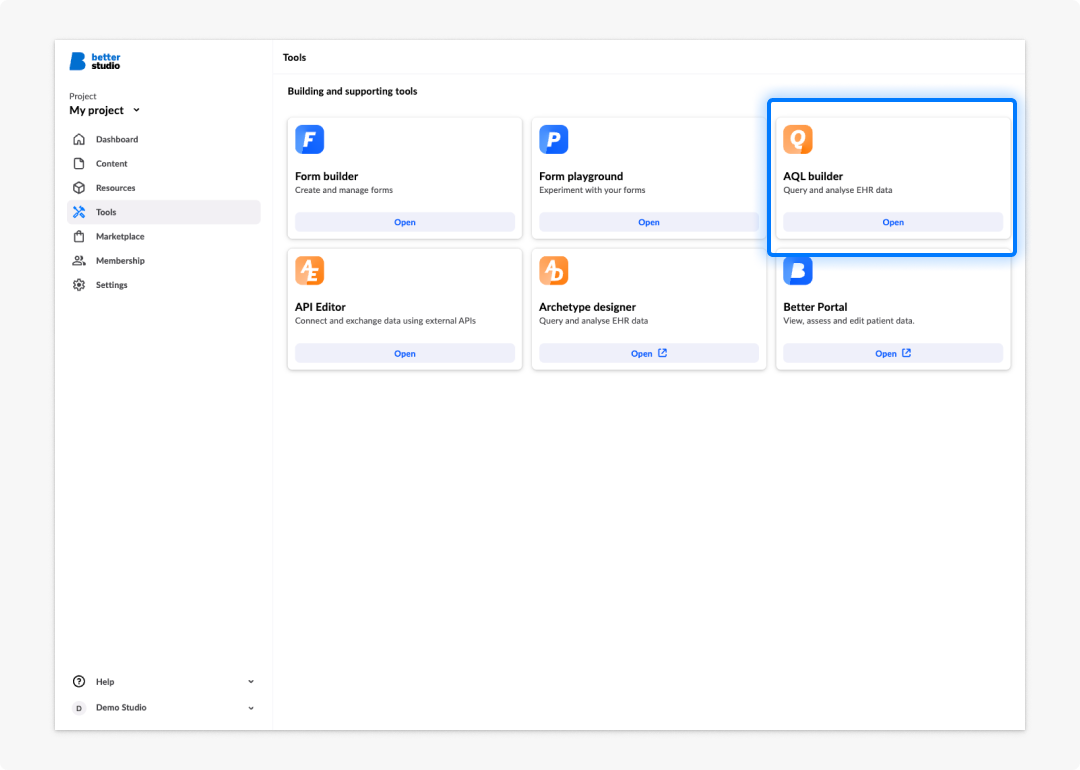
The AQL builder tool is present in all your projects. Simply navigate to the desired project and click on the AQL builder tool card. The AQL builder will open in the central panel.
Query editor
The Query editor is the central panel where you write and edit AQL. The editor provides:
- Syntax highlighting: AQL keywords, identifiers, and values are colour-coded for readability.
- Autocompletion: Press Ctrl+Space (Windows/Linux) or Control+Space (macOS) at any point to see available suggestions for keywords, archetype identifiers, and path segments.
- Formatting: The Format button in the toolbar standardises indentation and capitalises AQL keywords automatically. It does not change the logic of a query — only its presentation.
Results panel
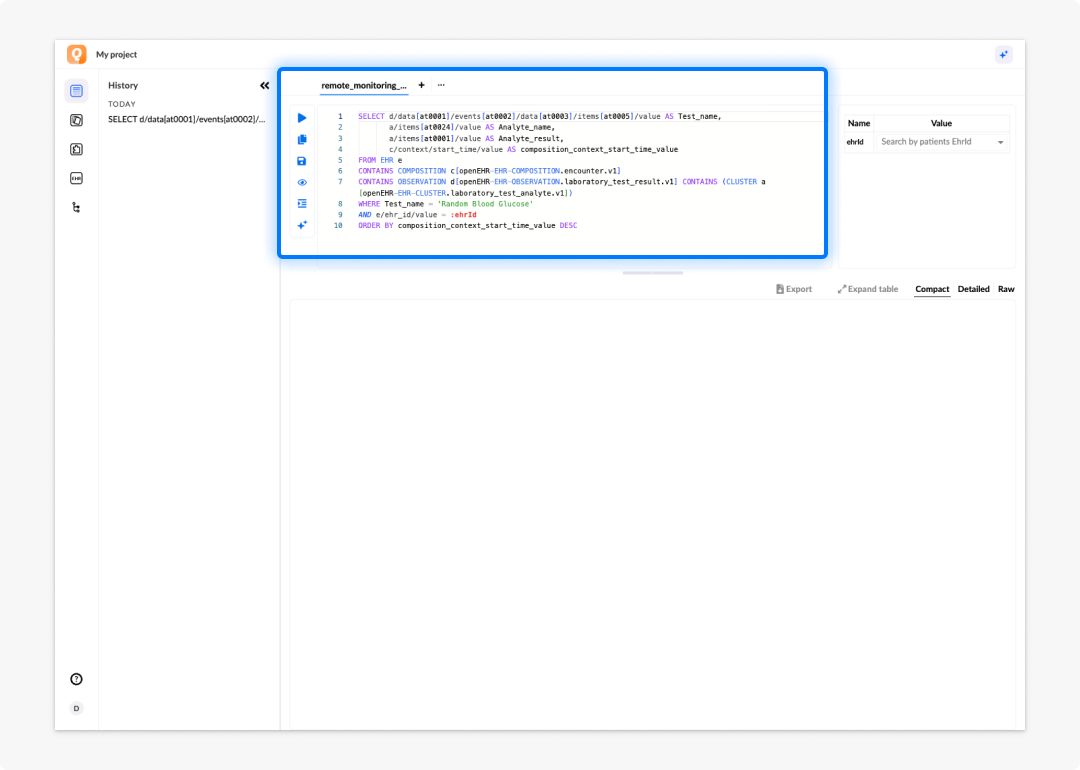
The results panel is displayed below the editor after you run a query. It has three view modes:
| Mode | What it shows | When to use it |
|---|---|---|
| Simple | A flattened table with one row per result. Column headings match the aliases defined in the SELECT clause. | Verifying that the correct data is returned. |
| Complex | A structured view reflecting openEHR's nested data model. | Queries with nested structures. A composition containing multiple observations is a good useage example. |
| Raw | The unprocessed JSON response from the EHR server. | Debugging query structure; inspecting data format before building a view or data connector. |
If the query fails, the results panel displays the error message returned by the server.
Template tab
The template tab lists all templates available in your project. Expanding a template reveals its archetype tree, allowing you to navigate to a specific data element and copy its path directly into the editor.
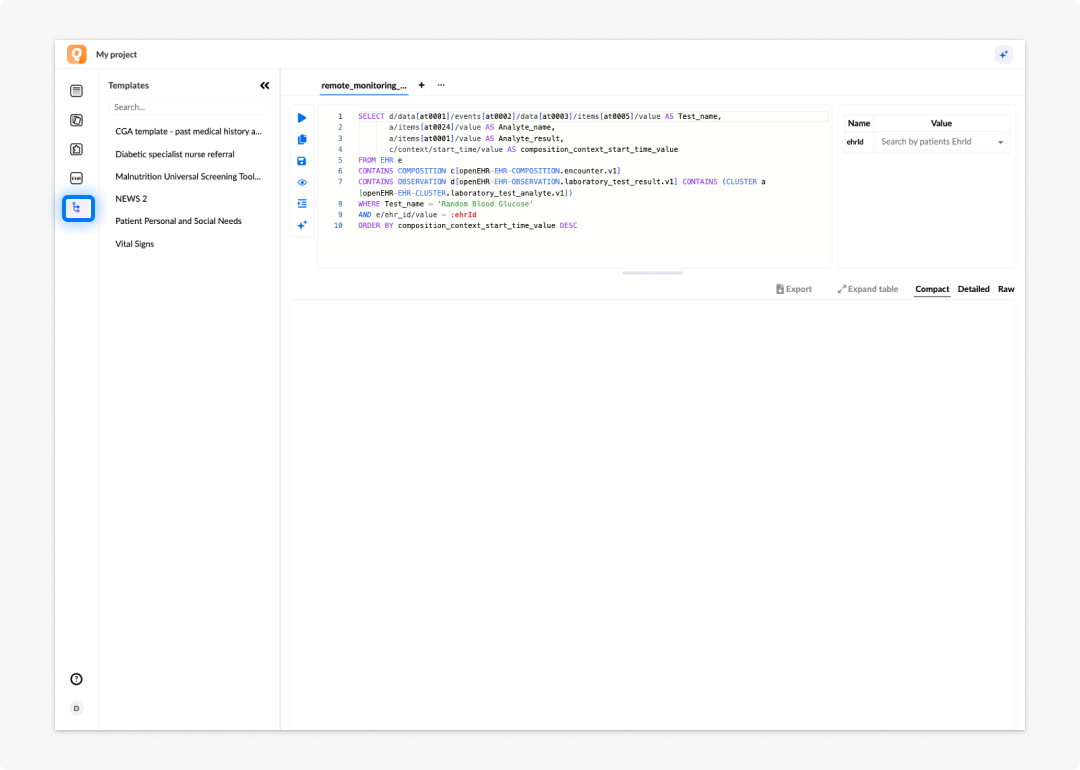
Using the template browser is the most reliable way to start a query, as it ensures paths are syntactically correct and eliminates the most common beginner error: Typing a path that does not match the actual template structure.
AQL history
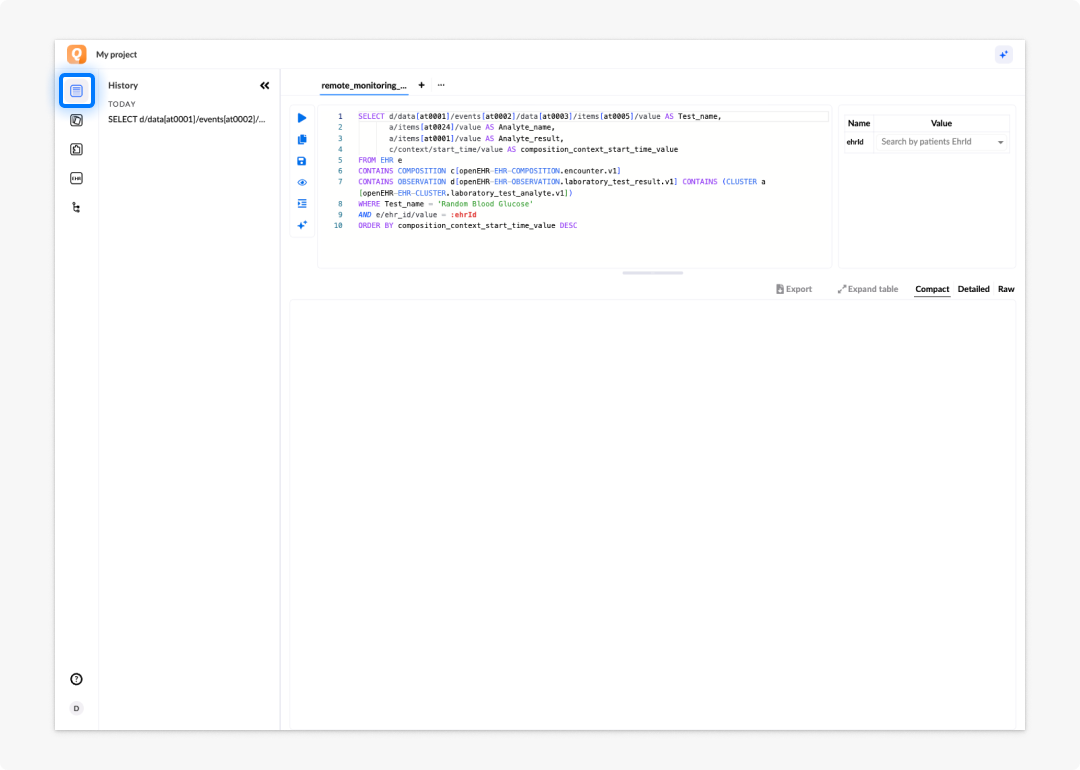
The AQL builder automatically saves every query you run in the History tab. Entries appear in reverse chronological order and show the query text and the time it was run. Selecting any entry loads it back into the editor.
History is stored per project and persists across sessions. Use it to recover queries you ran but did not explicitly save, or to review what was queried during a previous build session.
Frequently asked questions (FAQs)
What is the difference between AQL and SQL?
Both use a SELECT–FROM–WHERE structure. AQL is designed for openEHR, so it navigates a hierarchical clinical data model (EHR → COMPOSITION → entry types) rather than relational database tables. The concepts translate well if you know SQL, but the path syntax is different.
What if a template I need is not in the template browser?
The template browser only shows templates that have been uploaded to your project. If a template is missing, ask your Studio administrator to upload it, or upload it yourself if you have the required permissions.
Can I run queries against any EHR server from the AQL builder?
The AQL builder queries the EHR server connected to your current project. To query a different server, you need a project that connects to it.
Is the results panel showing live data?
Yes. Running a query executes it against the live EHR server connected to your project. Use test or staging environments when writing and refining queries to avoid affecting production data.
What does autocompletion suggest in the query editor?
Autocompletion suggests AQL keywords, archetype identifiers from the templates in your project, and path segments based on cursor position. Suggestions are context-aware — what appears depends on where you are in the query structure.