Voice to form
This content is intended for all Studio users. Plugin configuration requires access to Form builder; widget usage applies to anyone filling in a form.
Voice to form is a Form builder plugin that lets end users fill in a form by speaking instead of typing. The plugin records or imports audio, transcribes it with a voice service, and uses an AI processing service to map the transcript to the fields of the form.
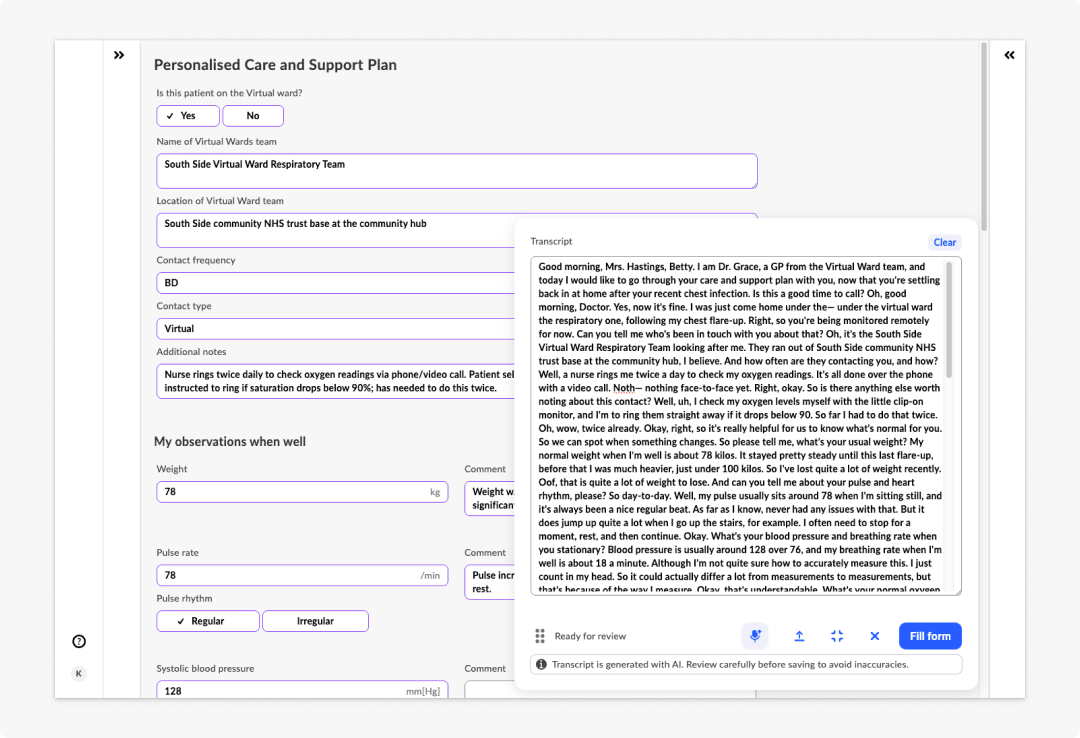
Voice to form supports two ways of working:
- Dictation — the user records (or imports) audio, reviews and optionally edits the resulting transcript, and then fills the form with a single action.
- Ambient — the transcript and the form are filled simultaneously while the user speaks. This is designed for ambient scribing scenarios, such as documenting during a consultation.
Setting up Voice to form involves two steps:
- Enable and configure the plugin on a form in Form builder — see Plugin configuration.
- Interaction with the Voice to form widget on the rendered form — see Widget usage.
Current version of Voice to form plugin relies on external AI services. Current version supports Soniox for voice transcription and Azure for processing. You need valid credentials for both services before the widget can be used on a form.
Plugin configuration
Enable the plugin on a form
Plugins live in a dedicated Plugins section in the Form builder side menu, alongside sections such as Templates and Generics.
To enable Voice to form on a form:
- Open your form in Form builder.
- In the side menu, open the Plugins section.
- Find the Voice to form plugin card. All plugins are disabled (toggled off) by default.
- Switch the toggle on the card to enable the plugin.
Plugin cannot be enabled until all mandatory configuration is fulfilled. In that case a warning indicator appears on the plugin card. While a warning is present, the widget is not shown on the preview, playground, or rendered form — it only appears once all errors are cleared and plugin is enabled.
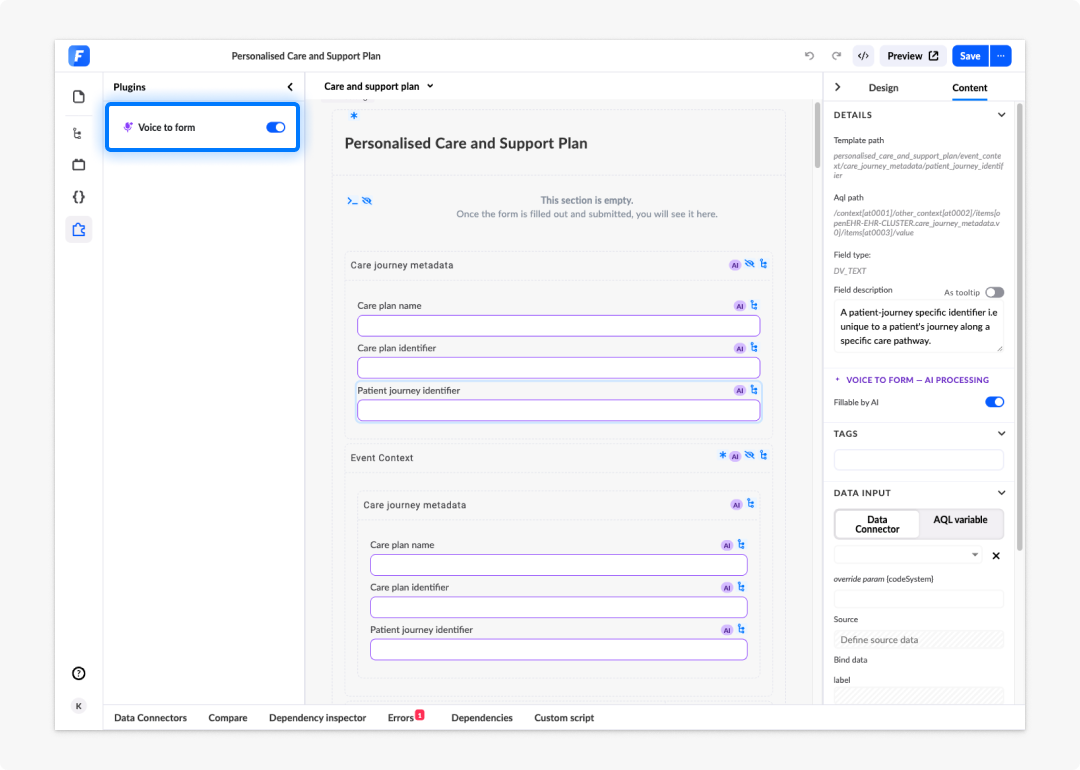
You can open the Plugin configurator, enter settings, and save presets without enabling the plugin. Enabling and configuring are independent steps.
Plugin configurator
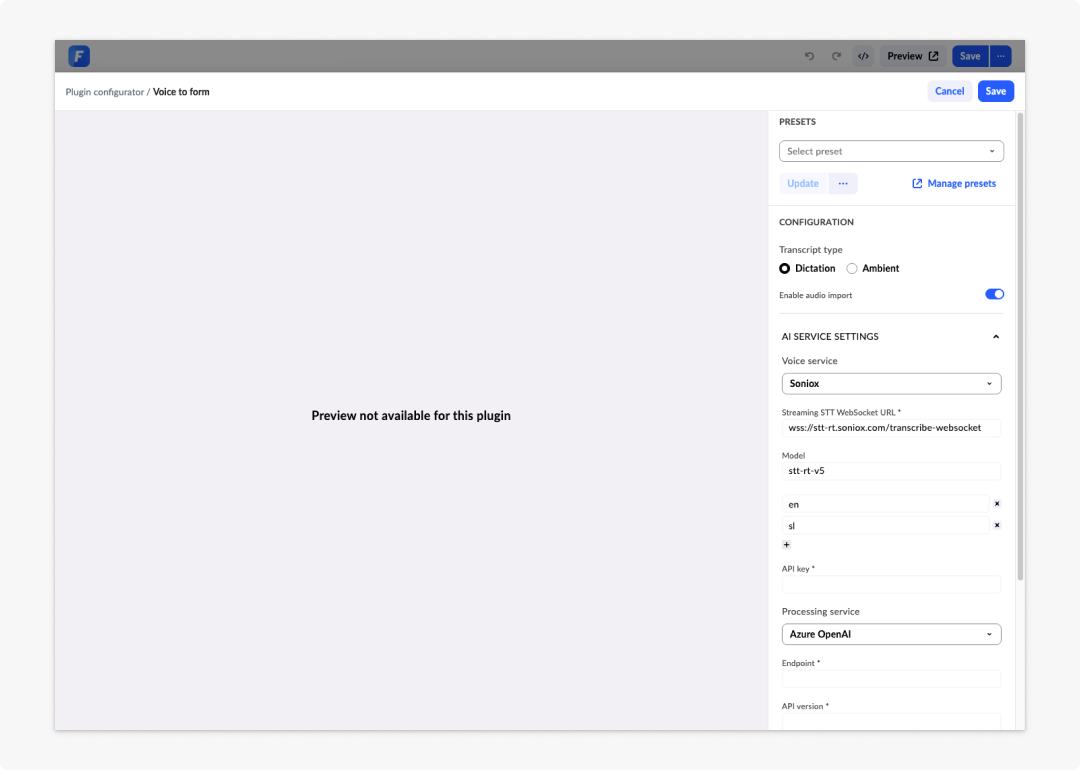
Click the Voice to form plugin card to open the Plugin configurator in a separate dialogue. The configurator opens with a preview on the left and the settings on the right, covering three areas:
- Presets — save and reuse configurations.
- Configuration — the behaviour of the widget for the end user.
- AI service settings — which services perform transcription and processing.
Presets
Preset saving works the same way as in the Widget configurator. Enter a configuration and save it as a preset, reuse it across forms, and update existing presets at any time. You can save as many presets as you need.
Configuration
The configuration options define how the widget behaves for the end user:
| Option | Description |
|---|---|
| Dictation | The form is filled only after the transcript is finished and the end user triggers the Fill form action. |
| Ambient | The transcript is streamed and the form fields are filled simultaneously with processed data while the user speaks. |
| Enable audio import | When toggled on, the end user sees an upload button on the widget and can import an audio file. When off, the upload button is hidden on the widget. |
AI service settings
Voice to form uses two AI services, each with its own role:
- Soniox — the voice service. It transcribes the recorded or imported audio into text. The voice service requires an administrator configuration that is universal for all users and should be preconfigured inside the plugin.
- Azure Open AI — the processing service. It processes the transcript and maps the data to the form fields.
Each service has its own set of required parameters. Some are predefined by the system; others, such as your credentials, are known only to you and must be entered manually.
You can save the plugin configuration without filling in all required parameters, but incomplete fields show an error, the plugin card in the side menu shows a warning icon, and the widget stays hidden on the preview and rendered form until the configuration is complete.
Enable AI processing on form fields
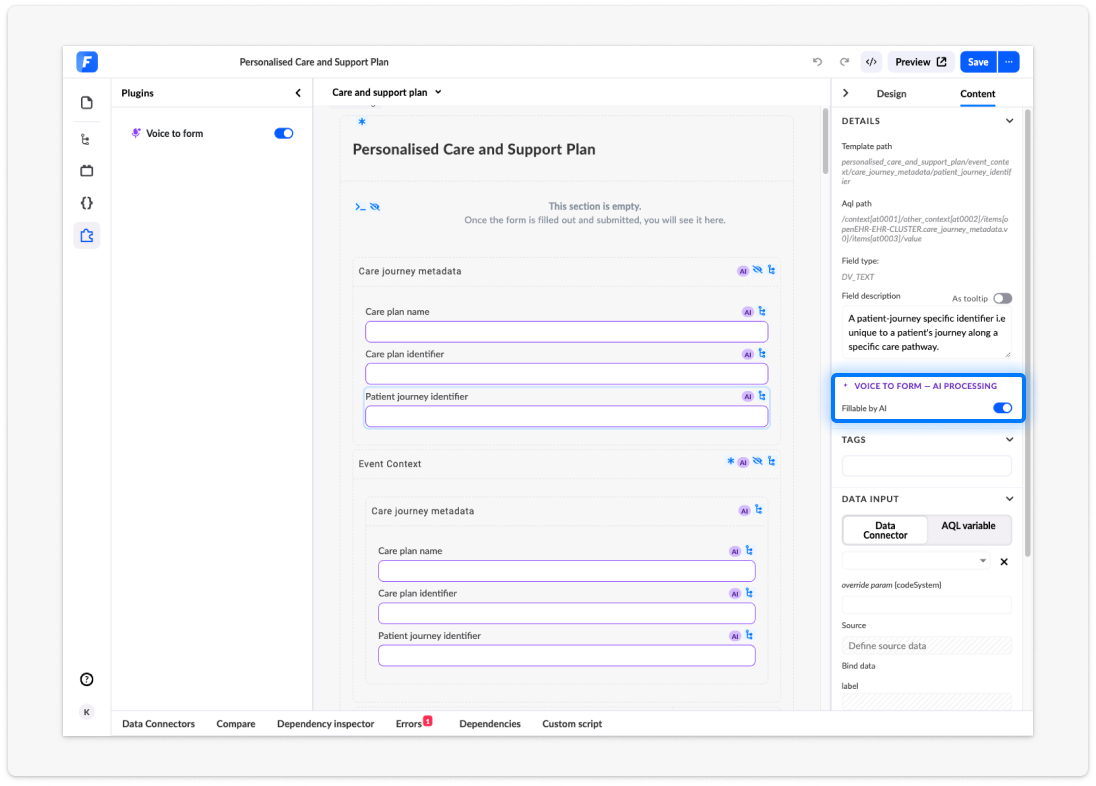
Not all fields in the form are processed and filled by the plugin automatically. You must enable AI processing individually for each field that the plugin should fill:
- Select the field on the form canvas.
- Open the field's Content settings.
- Enable AI processing.
You can also add a field description. The description gives the processing service extra context and helps it map the right value from the transcript to the field. This is especially helpful for generic components, where the field's purpose may not be obvious from its label alone.
Fields without AI processing enabled are ignored by the Voice to form plugin, even when the rest of the configuration is complete. End users can still fill them in manually.
Verify the configuration
Once all required parameters are filled in, open the form preview or playground. The Voice to form widget appears on the form canvas, and you can test it by pressing the record button. If any configured AI service is unresponsive, a general error is shown.
Widget usage
The Voice to form widget appears inside the form canvas in the preview, playground, and form renderer. It has three states:
- Hidden — a button with a fixed position in the bottom-right corner of the form canvas. It only reflects the current microphone usage. You cannot start or stop the recording from this state.
- Collapsed — a smaller, draggable widget with the main actions and status information.
- Expanded — a bigger, draggable widget that additionally shows the title, the Transcript input field, and notifications.
The collapsed widget offers dragging, the status indicator, Record/Stop, Import audio (if enabled), expand, hide, and Fill form (Dictation mode only, inactive by default).
Reloading the browser page or tab stops the recording and resets the widget to its initial blank state. No transcript is saved.
Dictation mode
In Dictation mode, you record or import audio, review the transcript, and then fill the form. The widget informs you about each step of the flow with a status:
| Status | Available action | Description |
|---|---|---|
| Ready | Record / Import audio | The widget is loaded in a blank state or has been reset. The transcript field is empty. |
| Recording... | Stop | Recording is in progress. The transcript field is filled in automatically, is read-only, and scrolls automatically to the bottom. |
| Ready for review | Clear / Record / Fill form | Recording has stopped. You can edit the transcript. |
| Filling in ... | — | The processing service is filling the form. No actions are possible. |
| Mic not available | Try again | Error state — the microphone is not connected. Reconnect the microphone or reload the form. |
| Configuration failed | Retry | One of the services is unavailable and returned an error. Retry re-initiates the last action (Record or Fill form). |
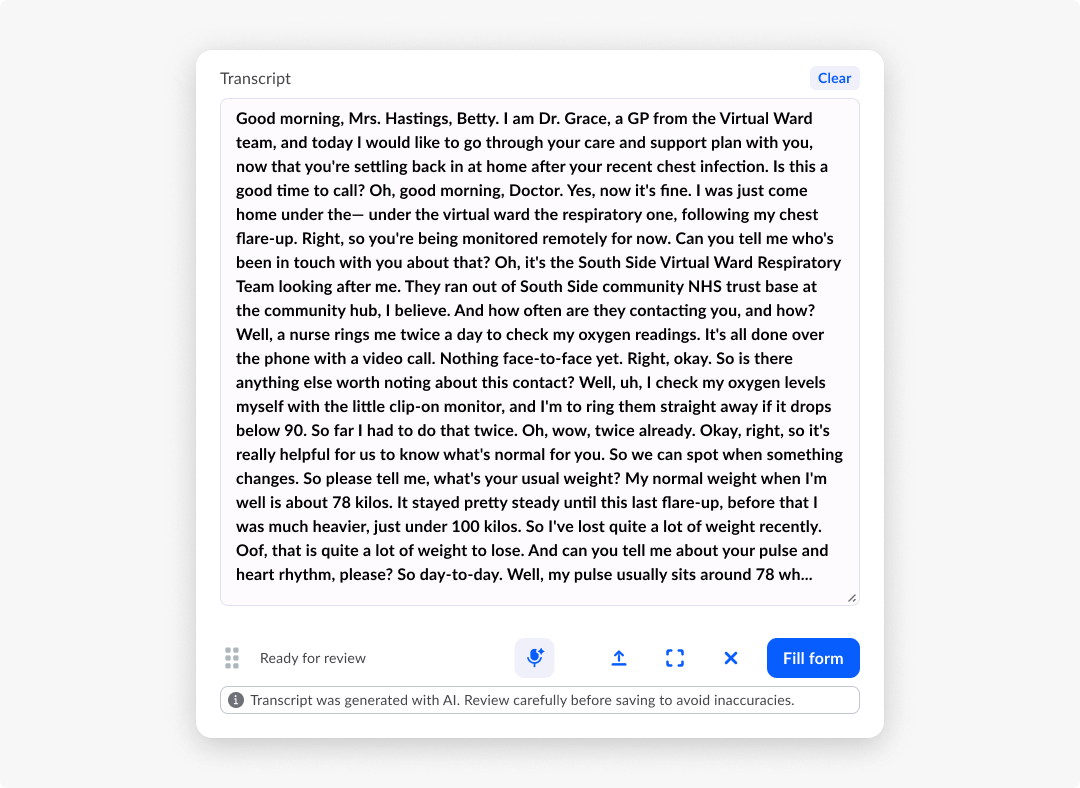
The following actions are available, depending on the state:
| Action | Description |
|---|---|
| Record | Start recording. |
| Stop | Pause recording. The recording is saved in cache and can be continued at any time. |
| Clear | Remove the transcript and the recording from cache. |
| Fill form | Send the recording to the processing service, which fills the form. |
| Import audio | Upload an audio file. It is sent to the voice processing service immediately. After an import you cannot start recording — you can only fill the form or clear. |
| Try again | Re-initiate the microphone connection. |
| Retry | After a configuration or network error, re-initiate the last action. |
Ambient mode
In Ambient mode the transcript and the form are filled in parallel while you speak: as the processing service recognises the input, form fields are filled and highlighted with BDS Magic styling. A small banner on the widget indicates Ambient mode, the Record button uses a different icon, and there is no Fill form action — everything is driven by voice. The transcript stays read-only at all times.
| Status | Available action | Description |
|---|---|---|
| Ready | Record / Import audio | The widget is loaded in a blank state or has been reset. The transcript field is empty and read-only. |
| Listening ... | Stop | Recording is in progress. The transcript field is filled in automatically, is read-only, and scrolls automatically to the bottom. The form is filled and the fields are highlighted with BDS Magic styling. |
| Ready for review | Clear / Record | Recording has stopped. The transcript remains read-only. |
| Mic not available | Try again | Error state — the microphone is not connected. Reconnect the microphone or reload the form. |
| Configuration failed | Retry | One of the services is unavailable and returned an error. Retry re-initiates the last action (Record). |
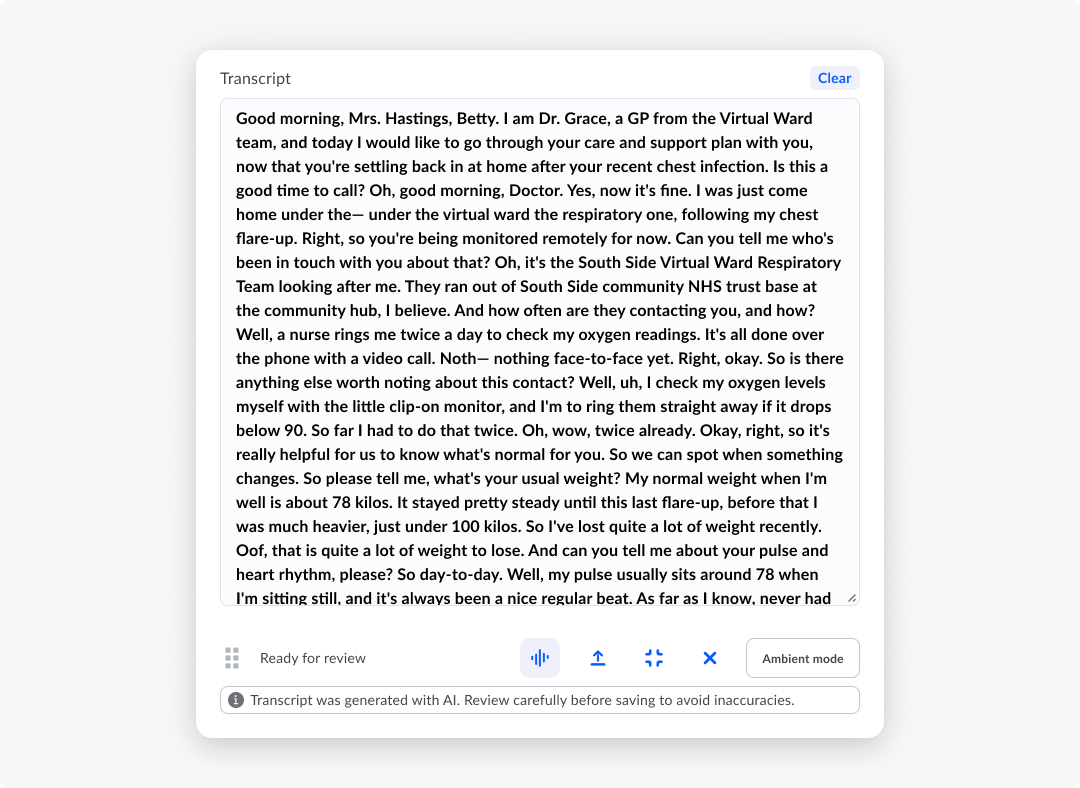
The following actions are available, depending on the state:
| Action | Description |
|---|---|
| Record | Start recording. |
| Stop | Pause recording. The transcript is saved in cache and can be continued at any time. |
| Clear | Remove the transcript and the recording from cache. |
| Import audio | Upload an audio file. It is sent to the voice processing service immediately. You can continue recording additional voice notes after the file has been processed. |
| Try again | Re-initiate the microphone connection. |
| Retry | After a configuration or network error, re-initiate the last action. |
You can minimise the widget at any time while recording. To start over, press Clear at the top of the transcript field.
In Ambient mode, Clear removes the transcript and the recording, but does not clear the form fields that were already filled. Clear the fields manually or reload the form.
Frequently asked questions (FAQs)
Why can't I see the Voice to form widget on my form?
The widget is only shown when the plugin is enabled and its configuration is complete. Check the Voice to form card in the Plugins section of the Form builder side menu — a warning icon means required AI service parameters are missing. Open the Plugin configurator and fill in all required fields.
Which AI services does Voice to form use?
Two separate services work together: Soniox transcribes the audio into a transcript, and Azure processes the transcript and maps the data to the form fields. Both need to be fully configured in the Plugin configurator before the widget appears on the form.
Why are some fields not filled, even though the widget works?
The plugin only fills fields that have AI processing enabled in their Content settings. Enable it for each field the plugin should fill, and consider adding a field description to help the processing service map the correct value — especially for generic components.
Can I edit the transcript before the form is filled?
In Dictation mode, yes — once the status is Ready for review you can edit the transcript before pressing Fill form. In Ambient mode the transcript is always read-only, because the form is filled in parallel while you speak.
What happens to my recording if I close or reload the page?
The recording stops and the widget resets to its initial blank state. No transcript is saved. Fields that were already filled in Ambient mode remain filled until you clear them or reload the form.
Does Clear also empty the form fields?
No. Clear removes the transcript and the cached recording only. In Ambient mode, fields that were already filled stay filled — clear them manually or reload the form.