Writing your first query
This content is intended for beginner Studio users.
The AQL builder gives you a query source, a query editor, and a results panel in one workspace. This page walks you through the full query cycle: Choosing a query source, building a query, running it, and reading the results.
Query sources
The left panel is your starting point for every query. It contains five sections, each serving a different purpose.
| Source | What it contains | How you use it |
|---|---|---|
| Templates | Event-specific data sets that group clinical data elements from your domain | Double-click a node to insert its path and generate a skeleton query in the editor |
| Predefined EHR server objects | Content-independent objects: EHR data, composition data, composition version, and versioned object | Double-click a node to add it to the query — same interaction as templates |
| Views | Stored queries saved to the EHR server and accessible via API | Open a view to load its query into the editor, then run or modify it |
| Snippets | Saved queries or reusable query fragments | Start typing a snippet name in the editor — the AQL builder recognises it and suggests it for insertion. Select the suggestion to insert the snippet code |
| History | A log of all queries you have previously executed in the AQL builder | Select any past query to load it back into the editor. History is read-only — it cannot be edited from this panel |
The interaction for templates and predefined EHR server objects is identical: Double-click the node you want, and the AQL builder inserts it into the editor. The source you choose depends on what you are querying, not on a different process.
Building a query from a template
The most reliable way to start a query is to use the template browser to construct the path, rather than typing it manually.
- In the left panel, select Templates.
- Expand the template that contains the data you want to query.
- Navigate through the archetype tree to the specific data element. This could be a systolic blood pressure value.
- Double-click the element to add its path to the query editor.
- The editor inserts a skeleton AQL query built around that path.
This approach ensures the path syntax is correct before you run a single line. The most common beginner error in AQL is a path that does not match the actual template structure — the template browser eliminates that risk entirely.
Short notation vs openEHR-specific notation
AQL supports two path styles. Both are available in the AQL builder.
Short notation uses abbreviated paths. It is easier to read and write, and sufficient for the majority of queries:
SELECT
  o/data[at0001]/events[at0006]/data[at0003]/items[at0004]/value/magnitude AS systolic
FROM EHR e
CONTAINS COMPOSITION c
CONTAINS OBSERVATION o[openEHR-EHR-OBSERVATION.blood_pressure.v2]
WHERE e/ehr_id/value = :ehrId
openEHR-specific notation uses the full named path. It is required when you need to target a specific named event within an archetype, or when short notation produces ambiguous results across multiple templates:
SELECT
  o/data[at0001]/events[at0006,'Any event']/data[at0003]/items[at0004,'Systolic']/value/magnitude AS systolic
FROM EHR e
CONTAINS COMPOSITION c[openEHR-EHR-COMPOSITION.encounter.v1]
CONTAINS OBSERVATION o[openEHR-EHR-OBSERVATION.blood_pressure.v2]
WHERE e/ehr_id/value = :ehrId
Start with short notation. Switch to openEHR-specific notation when short notation returns unexpected results or requires named event disambiguation.
Short notation cannot be executed directly on an AQL server. Before copying a query for use outside the AQL builder, use the Copy option in the editor toolbar to ensure you copy the full openEHR-specific notation.
The template browser displays paths in both notations. Toggle between them using the notation selector at the top of the browser panel.
Using autocompletion and formatting
Autocompletion is available throughout the editor. Suggestions include AQL keywords, entry type identifiers, archetype identifiers from the templates in your project, and path segments based on what you have already typed.
Formatting standardises the query layout. Select Format in the toolbar to apply consistent indentation and keyword capitalisation. Formatting does not change the logic of a query — only its presentation.
Running a query and reading the results
Select Execute query in the toolbar. The results panel opens below the editor.
The three results views
| View | What it shows | When to use it |
|---|---|---|
| Compact | Grouped view showing the most relevant data, one row per result | Verifying the correct data is returned |
| Detailed | All data with each node and the full openEHR structure | Queries returning nested structures — for example, a composition with multiple observations |
| Raw | Unprocessed JSON response from the EHR server | Debugging query structure; inspecting the exact data format before building a view |
You can sort results by selecting a column header. For large result sets, the interface adds pagination automatically. When results are complex and contain a lot of nested data, use the expand/collapse controls to navigate the structure.
When a query returns an error
If the query fails, the results panel displays the server error message. Common causes:
- A path that does not match the template structure. Make sure to check the template browser.
- A missing or malformed
WHEREclause condition. - A parameter used in the query without an assigned value, see Refining queries with parameters section.
Our Query assistant can be a helpful tool to debug and check your queries.
Exporting results as CSV
Run the query, then select Export in the results panel toolbar. The download contains the current results in CSV format, which you can open in Excel or another application for further analysis.
Export is useful for sharing query output with clinical reviewers to verify data quality, checking data completeness across a template, or ad-hoc reporting during development.
CSV export reflects live data in your connected EHR environment. Follow your organisation's clinical data governance requirements before sharing exported files.
Saving and reusing queries
Snippets
Snippets let you save a complete query or a reusable fragment — for example, a standard LIMIT clause or a WHERE condition you use repeatedly — so you can insert it into any future query without rewriting it.
To save a snippet:
- Write the query or fragment you want to save in the editor.
- Select Save in the toolbar, then choose Save as snippet.
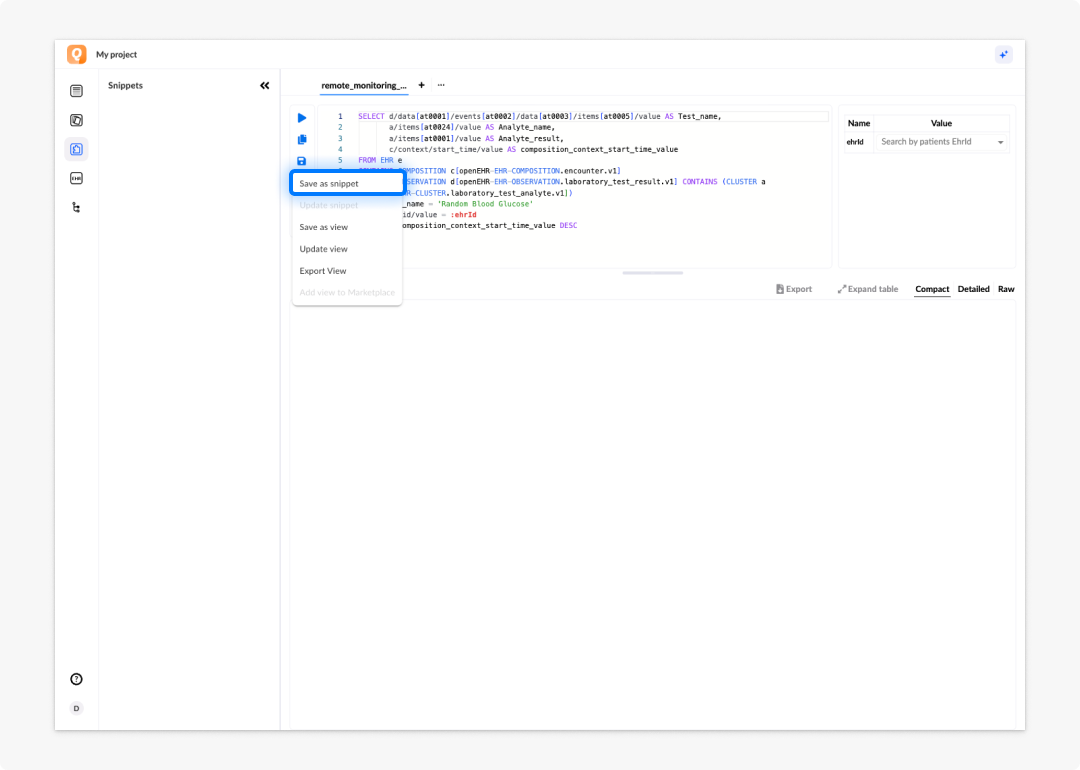
To update an existing snippet:
- Make your changes to the snippet code in the editor.
- Select Save, then choose Update snippet.
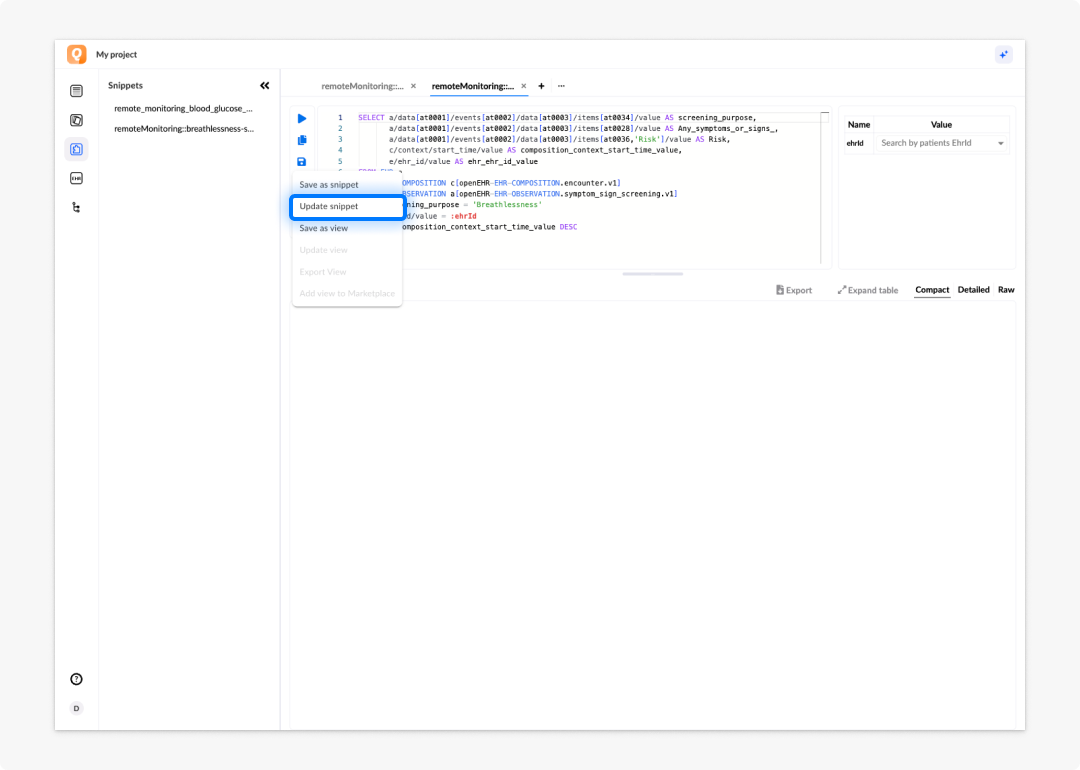
To use a snippet:
Start typing the snippet name in the editor. The AQL builder recognises the name and suggests it for insertion. Select the suggestion to insert the snippet code at the cursor position.
Views
Views are complete queries saved to the EHR server and exposed via API. Saving a query as a view adds a security layer and allows developers to update the query without redeploying the application that calls it. Views can also accept parameters, which are passed as API endpoint parameters at runtime.
To save a query as a view:
- Click on +
- Write and test the query in the editor.
- Select Save in the toolbar, then choose Save as view.
- The EHR server stores the view and exposes it in the API. You can then call it using a data connector in Better Studio.
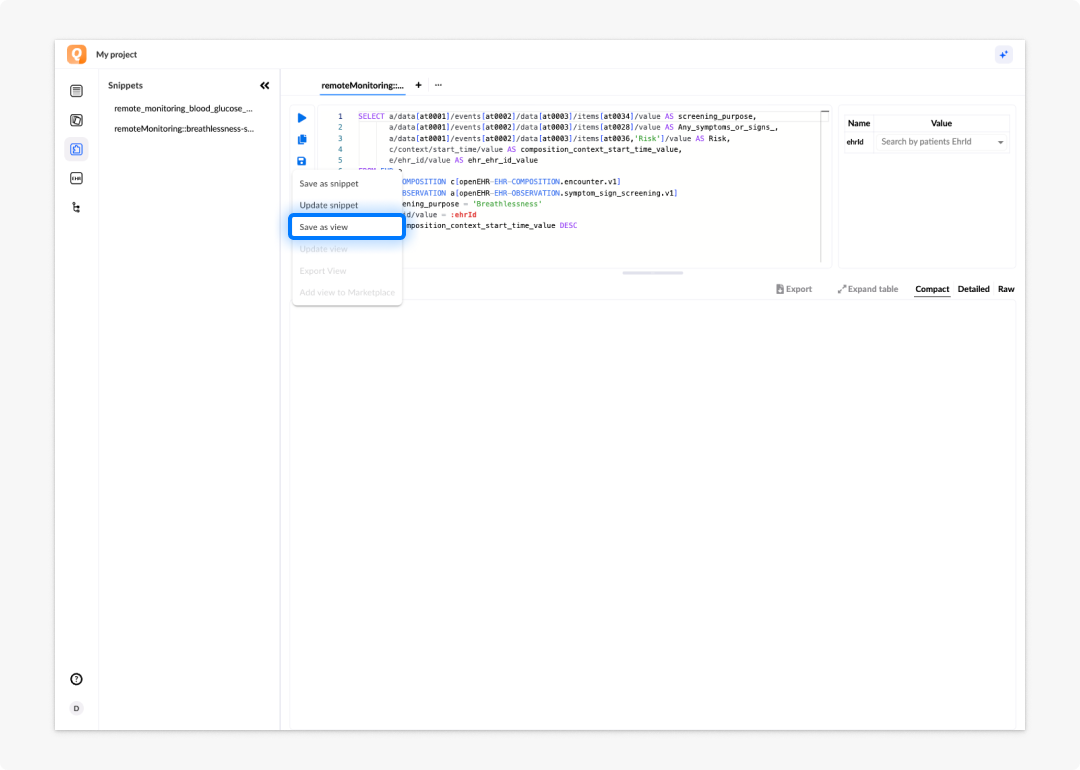
To add a parameter to a view:
Add a variable to the query using the :variable_name notation — for example, :ehrId. The variable becomes a parameter on the view's API endpoint.
A view you have already saved appears in the Views section of the left panel. Select it to load the query back into the editor.
Frequently asked questions (FAQs)
How many results does a query return by default?
A server-side limit is enforced automatically to prevent overload. To control the number of results yourself, include a LIMIT clause — for example, LIMIT 100.
Can I query multiple templates in one query?
Yes. Use multiple CONTAINS clauses to span multiple archetypes and templates in a single query, combining data from different clinical documents in one result set.
What does AS systolic do in the SELECT clause?
It gives the returned value an alias — the column heading in compact view and the key in the raw JSON response. Aliases make results easier to read and map to form fields in a data connector.
Why does my query return duplicate rows?
Duplicate rows usually mean the CONTAINS chain is matching the same data element multiple times. Add a more specific WHERE condition or use DISTINCT in the SELECT clause.
Can I use ORDER BY in AQL?
Yes. For example, ORDER BY c/context/start_time/value DESC returns the most recent compositions first. Pair with LIMIT 1 to retrieve the single most recent record only.
What happens if the template has changed since the data was stored?
AQL queries data as it was stored, using the paths from the template version active at the time of storage. If a template has been updated, older data may use different paths. Always check the template version in the browser when querying historical data.