Expression Assistant Overview
Expression assistant is a submodule that helps users transform data into a more appropriate format.
Sometimes you want to manipulate data before you display it on a form. For example, you might want to:
- concatenate first name and last name and display both as a value in a coded text,
- format date before you display it on a form, or
- recalculate numeric data; for example, BMI from the body weight.
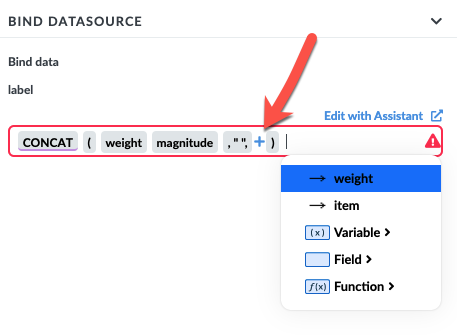
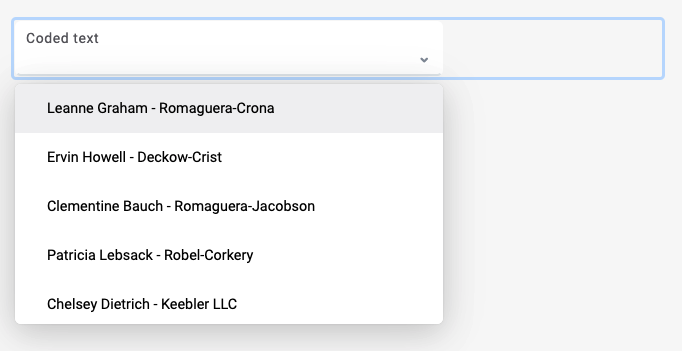
The example above shows how to concatenate the user's name, a dash sign, and a company name.
With a new expression, the coded text displays username as well as the company name:
You can use expressions in:
- 'when' and 'where' clauses in the Interactions dependencies,
- bind datasource labels and values,
- variable values,
- test variable values,
- API parameters, and
- path parameters.
Expression Assistant Usage
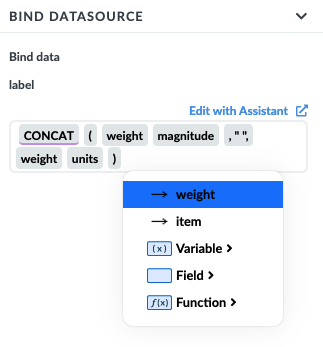
Expression assistant will provide you with available AQL results, form fields, variables, and functions. You will see available options in a dropdown list.
By clicking the Edit with Assistant link, you will get an overview of all available functions:
- Basic functions like addition, subtraction, multiplication, and division.
- Dynamic data like form fields, variables, and API result data.
- Text functions for lower and uppercase, concatenation, trimming, text length, and substitution.
- Math functions like rounding a number, finding minimum, and maximum.
- Date functions like date format and date difference.
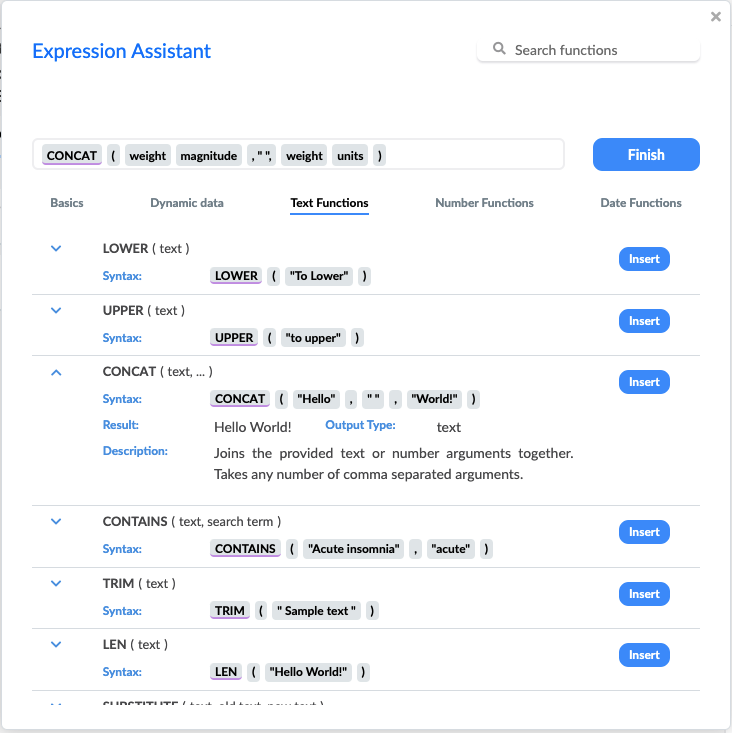
By clicking a function, you can see the detailed description and usage example of the function. By clicking the Insert link, you add the function to the expression.
You can also use the Expression assistant by using the dropdown menu.
Expression Spots
To delete a spot in the expression, use the delete icon:
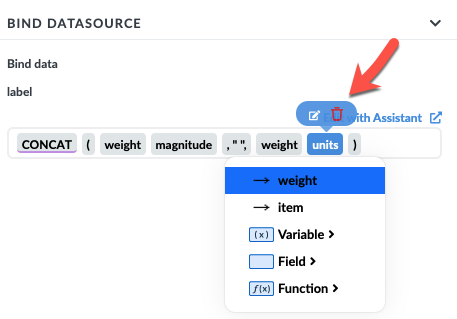
To add another spot into an expression, click outside the expression, then hover over the part where you want to add a spot. A plus sign for the available spot will appear. Click on it to add a new spot.