Expression assistant
This content is intended for intermediate to advanced Studio users.
Recap: The Expression assistant is Better Studio's formula editor. It lets you build expressions from a library of functions to calculate values, drive conditional logic, and transform data, all without writing code. For an introduction to the tool and its place in the form-building workflow, see Build in Studio: Logic and behaviour.
This page is the complete function reference. It covers every function available in the Expression assistant, organised by tab, along with guidance on multi-step expressions, behavioural differences between expression types, and common mistakes.
How the Expression assistant is organised
The Expression assistant opens in a modal. The left side shows the expression canvas, a series of spots you populate with values or functions. The top of the function picker is divided into tabs:
- Basics: Plain values, and the four arithmetic operations.
- Dynamic data: References to form fields, variables, data connector results, and AQL view results.
- Text functions: Functions that operate on text strings.
- Number functions: Functions that operate on numbers.
- Date functions: Functions that operate on date and time values.
- General functions: LIST, IF, and CALC.
You can combine functions from any tab in a single expression.
Basics
| Function | Description |
|---|---|
| Plain value | Enter a static text or number value directly. |
| Addition (+) | Adds two numeric values. |
| Subtraction (-) | Subtracts the second value from the first. |
| Multiplication (×) | Multiplies two numeric values. |
| Division (÷) | Divides the first value by the second. Returns empty if the divisor is zero. |
Dynamic data
| Function | Description |
|---|---|
| Field | References the current value of a single field on the form. |
| Field composite | References a composite value built from multiple fields. |
| Variable | References the current value of an internal or external variable. |
| Variable composite | References a composite value built from multiple variables. |
| API | References a value returned by a configured data connector or API call. |
If a referenced field or variable is empty at evaluation time, most functions return an empty result. Use an IF expression with isEmpty to handle this explicitly where required.
Text functions
| Function | Description |
|---|---|
| LOWER (lowercase) | Converts a text value to lower case. |
| UPPER (uppercase) | Converts a text value to upper case. |
| CONCAT (concatenation) | Joins two or more text values into a single string. |
| CONTAINS | Returns true if a text value contains a specified substring. |
| TRIM | Removes leading and trailing whitespace from a text value. |
| LEN (length) | Returns the number of characters in a text value as a number. |
| SUBSTITUTE (substitution) | Replaces all occurrences of a specified substring with a replacement string. |
| PROPER | Converts a text value to title case, capitalising the first letter of each word. |
Number functions
| Function | Description |
|---|---|
| ROUND | Rounds a number to the nearest integer. |
| MIN | Returns the smallest value from a set of numbers. |
| MAX | Returns the largest value from a set of numbers. |
| AVERAGE | Returns the arithmetic mean of a set of numbers. |
| ABS | Returns the absolute value of a number. |
| POWER | Raises a number to the power of an exponent. |
| SQRT | Returns the square root of a number. |
| LN | Returns the natural logarithm (base e) of a number. |
| LOG | Returns the logarithm of a number to a specified base. |
| FLOOR | Rounds a number down to the nearest integer. |
| CEIL | Rounds a number up to the nearest integer. |
| COUNT | Returns the count of values in a set. |
Date functions
| Function | Description |
|---|---|
| DATE | Returns a date value from year, month, and day inputs. |
| TIME | Returns a time value from hour, minute, and second inputs (eg. HH,MM,SS). |
| DATE_DIFF | Calculates the difference between two dates in a specified unit (days, months, years). |
| NOW | Returns the current date and time. |
| YEAR | Extracts the year component from a date value. |
| MONTH | Extracts the month component from a date value. |
| DAY | Extracts the day component from a date value. |
| ADD_DAYS | Adds a specified number of days to a date value. |
| ADD_MONTHS | Adds a specified number of months to a date value. |
| FORMAT_DATE | Formats a date value as a string using a specified pattern (e.g. DD/MM/YYYY). |
Do not use FORMAT_DATE on a date or date-time field directly. Date and date-time fields only accept a predefined format, so formatting to something else will not set the field as intended. Use FORMAT_DATE for display purposes only, on a separate display field or label.
General functions
| Function | Description |
|---|---|
| LIST | Returns a list of values. Used to populate coded text or multi-value fields from an expression. |
| IF | Evaluates a condition and returns one value if true, another if false. |
| CALC | Evaluates a full arithmetic expression written as a string, respecting operator precedence and parentheses. Useful when the formula is complex or dynamic and cannot be expressed cleanly with individual arithmetic spots. |
Multi-step expressions
A multi-step expression chains several functions together across multiple spots. The output of one function becomes the input of the next. Use the + connector between expression spots to extend the chain.
Example: Dynamic display label combining first name, last name, and age:
- Spot 1: Concatenate → First name field + space (plain value)
- Spot 2: Concatenate → result of Spot 1 + Last name field
- Spot 3: Concatenate → result of Spot 2 + ", age " (plain value)
- Spot 4: Date difference → Date of birth field → Today → Years
- Final: Concatenate → result of Spot 3 + result of Spot 4
The result is a string such as Jane Smith, age 47.
Dependency conditions vs value bindings
The Expression assistant is used in two contexts that behave differently:
| Dependency condition | Value binding | |
|---|---|---|
| Purpose | Controls show/hide or enable/disable of a field | Populates the value of a field |
| Expected output | Boolean (true / false) | Matches the target field type (text, number, date, etc.) |
| If output type is wrong | Condition behaves unpredictably | Field may not populate or may show a type error |
| Common mistake | Using a text-returning function (e.g. concatenation) in a condition | Using a boolean expression in a value binding |
Always confirm the intended output type of an expression before applying it. A condition that always evaluates to a non-boolean value will either always show or always hide the target field, depending on how Studio interprets the truthy value.
Common mistakes
| Mistake | What happens | How to avoid it |
|---|---|---|
| Referencing an empty field without a guard | Expression returns empty or null; dependent fields may clear unexpectedly | Wrap the field reference in an IF with an isEmpty check |
| Using date format on a partial date field | Warning shown; value not formatted | Use partial date functions, or add an isEmpty guard |
| Rounding a number to decimal places using round alone | Result is always an integer | Multiply, round, then divide (see FAQ) |
| Chaining functions without checking intermediate outputs | Errors propagate silently through the chain | Test each step in Form playground before adding the next |
| Using a text function output in a dependency condition | Condition does not evaluate as expected | Confirm the expected output type for the expression context |
Clinical worked examples
Auto-calculating risk scores (NEWS2, BMI, eGFR)
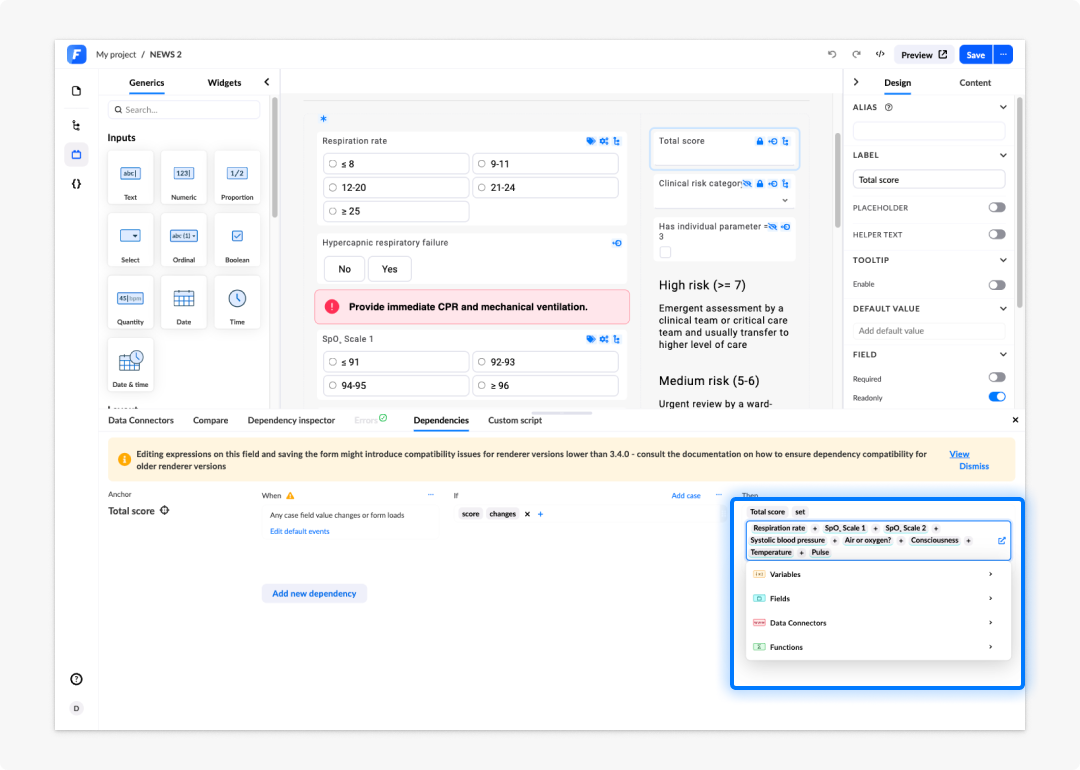
Risk scores are calculated using arithmetic functions from the Basics tab, with each component field referenced from the Dynamic data tab. For NEWS2, configure a value binding on a hidden calculated field. Each physiological parameter contributes a sub-score; the sub-scores are summed using addition spots. For BMI, divide weight (kg) by height (m) squared using multiplication and division spots.
Building dynamic display labels from multiple fields
Concatenate patient identifiers, clinical values, or other fields into a single display string using the Text functions concatenation (CONCAT) function. Use a plain value spot to insert literal separators such as commas, spaces, or em dashes between field references.
Age-gating: Calculating age to drive show/hide logic
Step 1: Add a date difference expression: Date of birth field → Today → Years. Step 2: Use the result in a dependency condition with a comparison operator (e.g. result ≥ 18). Step 3: Apply the condition to the fields or sections that should only appear for adult patients.
Formatting timestamps for display vs storage
To display a date in a localised or clinically conventional format, use FORMAT_DATE on a separate display-only field or label. Keep the original date or date-time field as the stored value and use the formatted output for presentation only. Do not use FORMAT_DATE directly on a date or date-time field — those fields only accept a predefined format, so formatting to something else will not set the field as intended.
Frequently asked questions (FAQs)
Where can I use the Expression assistant?
The Expression assistant is available in places where you can configure a value as an expression. This includes dependency conditions and value bindings, API and data connector parameters, variable value configuration, default values on fields, widget configurations, and list bindings.
What is the difference between a dependency condition expression and a value binding expression?
A dependency condition expression evaluates to true or false and controls whether a field is shown, hidden, enabled, or disabled. A value binding expression evaluates to a value and populates a field. The functions available are the same, but the expected output type differs. Using a function that returns text in a dependency condition (where a boolean is required) will cause the condition to behave unexpectedly.
How do I format a date from a data source for display?
Use the FORMAT_DATE function from the Date functions. Add FORMAT_DATE to the expression, pass the date field or data source value as the first argument, and enter the desired display format as the second argument in single quotation marks. The format must follow the date-fns library format specification. Do not apply FORMAT_DATE directly to a date or date-time field — use it on a display-only field or label instead.
How do I combine text from multiple fields or sources?
Use the Concatenation function from the Text functions. CONCAT accepts any number of arguments separated by a comma, including field references, variables, API results, and plain text values. This is the recommended approach whenever you need to join text from different sources, or example: Combining a first name field, a space, and a last name field into a single display string.
How do I set multiple default values on a coded text or ordinal field?
Use the LIST function from the General tab. In the property panel, go to the Default value input, select Function, and choose LIST. Add the values you want inside the brackets, separated by commas. Make sure the field's multiplicity settings allow multiple values before doing this. Note that typing LIST() directly without selecting it from the function dropdown will not work correctly.
Can I chain functions across multiple spots in a single expression?
Yes. Multi-step expressions combine several functions in sequence, passing the output of one as the input of the next. Use the + connector between expression spots to build the chain. Test each step individually in Playground before adding the next to confirm the intermediate outputs are as expected.
What happens if a referenced field is empty when an expression is evaluated?
Most functions return an empty or null result if any input field is empty. Dependency conditions that reference empty fields typically evaluate to false. Use IF with isEmpty to handle this explicitly where required.
Why does my date expression show a warning?
This typically occurs when FORMAT_DATE is applied to a date or date-time field directly. Those fields only accept a predefined format, so formatting to something else will not set the field as intended. Apply FORMAT_DATE on a separate display-only field or label instead.
How do I use the Expression assistant to calculate a numeric value such as BMI?
Use the arithmetic functions from the Basics functions (addition, subtraction, multiplication, and division) with field references from the Dynamic data functions. For BMI, divide the weight field by the result of multiplying the height field by itself. For more complex formulae with operator precedence, use CALC from the General tab. You can check our Better Studio basic course on Hive for a BMI calculation implementation example.