Resources
This content is intended for all Studio users.
Resources is the project-level area where you manage the shared assets that forms across a project can use. Changes made here apply to all content within the currently selected project.
Resources contains four tools:
- Templates: The openEHR templates uploaded to your project.
- API connectors: Reusable connections to external APIs.
- External variables: Project-wide values accessible in every form.
- Labels: Colour-coded tags for organising and filtering forms.
Templates
The Templates section lists all openEHR templates uploaded to your currently selected project. The list is sorted alphabetically. Each entry displays the date the template was last updated.
Use the button at the end of each row to move a template to another project, export it, or delete it.
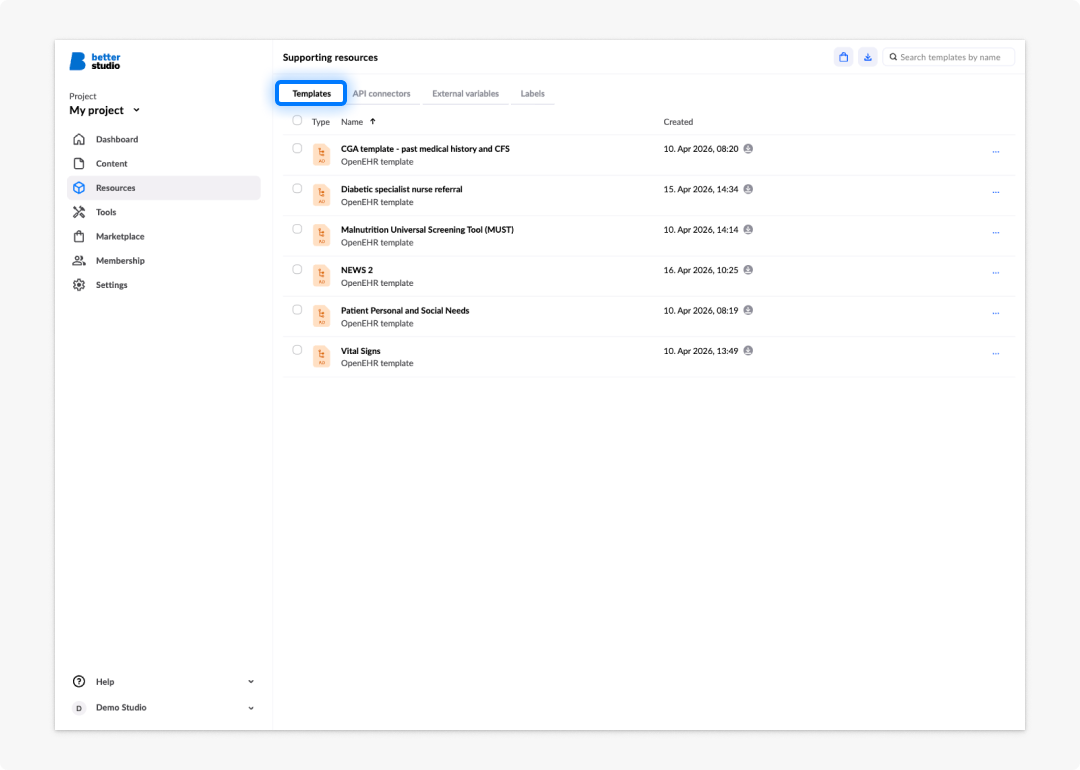
Deleting a template removes it from the EHR server. This action cannot be undone.
API connectors
API connectors define reusable connections to external APIs. They are configured once at the project level and can be referenced from any form in the project. Each connector groups one or more API calls under shared settings such as a base URL and authentication.
To use an API connector in a form, you create a data connector inside the form that references one of the connector's API calls. This makes the call available to components in that form — most commonly select fields, coded text fields, column lists, and widgets.
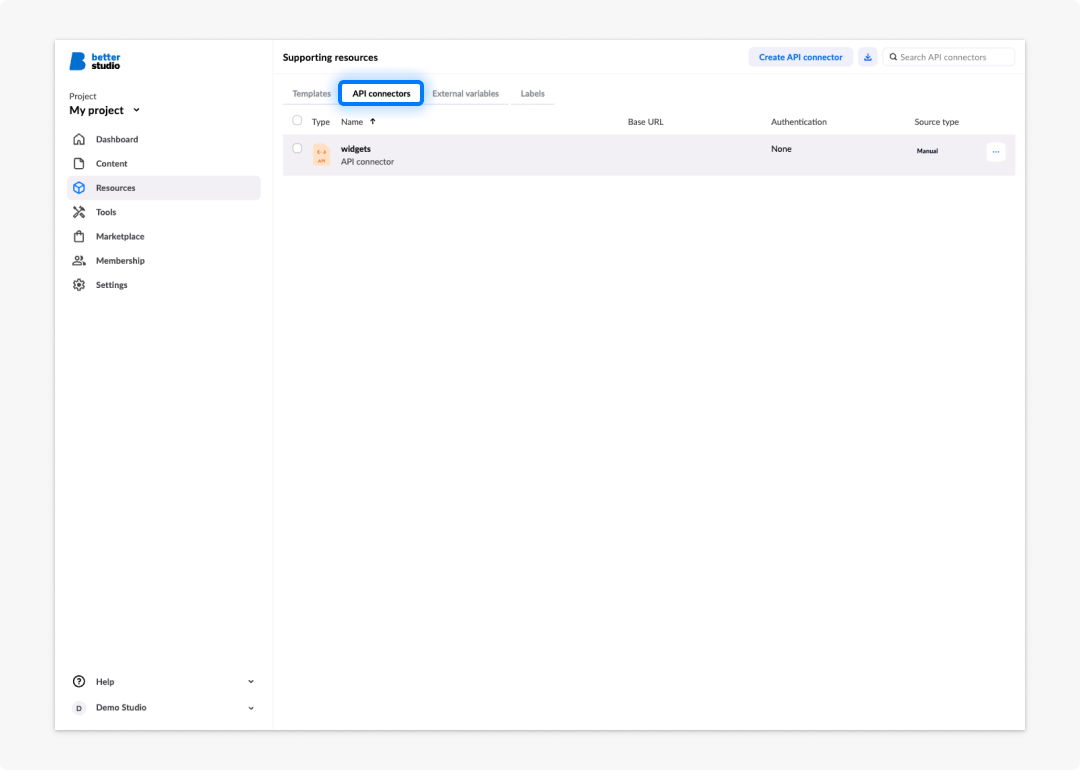
Creating an API connector
To create a new API connector:
- Go to Resources in the project dashboard
- Select the API connectors tab
- Click Create API connector in the top right corner.
Common settings
All API calls within a connector share the following settings:
| Setting | Description |
|---|---|
| API name | The name by which all calls in the connector are identified, for example, Demography. |
| Base URL | The URL prefix applied to all API calls in the connector. Supports variables and expressions. |
| Base URL (test value) | Temporarily overrides the base URL for testing within the API editor. Can be set at the connector level or overridden per call. |
| Authentication | Supports Basic (username and password), EHR Platform credentials (inherited from EHR server), and Bearer/OAuth2 (token). |
| Shared headers | Headers applied to every call in the connector. Use for headers that all calls require, such as encrypted headers. |
| Shared parameters | Parameters used across all calls, for example, patientID. |
| Pre-request | A script executed before each API call, for example, to retrieve an authentication token and set it in the call headers. |
Bearer tokens and username or password credentials can be stored as external variables and referenced in the authentication settings. This keeps sensitive values out of the connector configuration.
Creating an API call
To add a call to a connector, click Create new API call, then:
- Name the call, for example,
Get All Users. - Select the HTTP method:
GET,POST,PUT,PATCH, orDELETE. - Enter the API endpoint. The endpoint can include variables set in External variables, for example,
terminologyURL. - Optionally, add a Base URL test value, headers, and parameters.
- Click Start test call to verify the configuration.
- Click Save.
For POST, PUT, and PATCH calls, you also need to provide a body type and body data to send to the endpoint.
Importing APIs from OpenAPI definitions
Studio supports importing OpenAPI 3.0 and 3.1 definitions in YAML or JSON format. To import a definition, click Import OpenAPI and choose one of the following input methods:
- File: Upload a file from your local machine.
- URL: Enter the URL of the definition.
- cURL: Provide a cURL command for definitions that require authentication. Example:
curl -u username:password https://example.com/openapi.yaml. - Raw JSON/YAML: Paste the definition content directly.
After import, Studio creates an API connector containing the calls and parameters from the definition. Imported connectors are tagged OpenAPI in the connector list.
You can edit the base URL, authentication settings, and test values after import, but you cannot add or remove API calls directly. To extend an imported connector, duplicate it and edit the copy.
Updating an imported connector
To update an imported connector, reimport the definition using Import OpenAPI. Studio updates the existing connector in place.
Note that:
- If you have renamed the connector since the original import, Studio treats the reimport as a new connector.
- API calls removed from the updated definition are deleted from the connector.
- Base URL, authentication, and test values set after the original import are not overwritten.
External variables
External variables are project-level values that can be referenced in any form within the project. They provide a single place to manage values that multiple forms share.
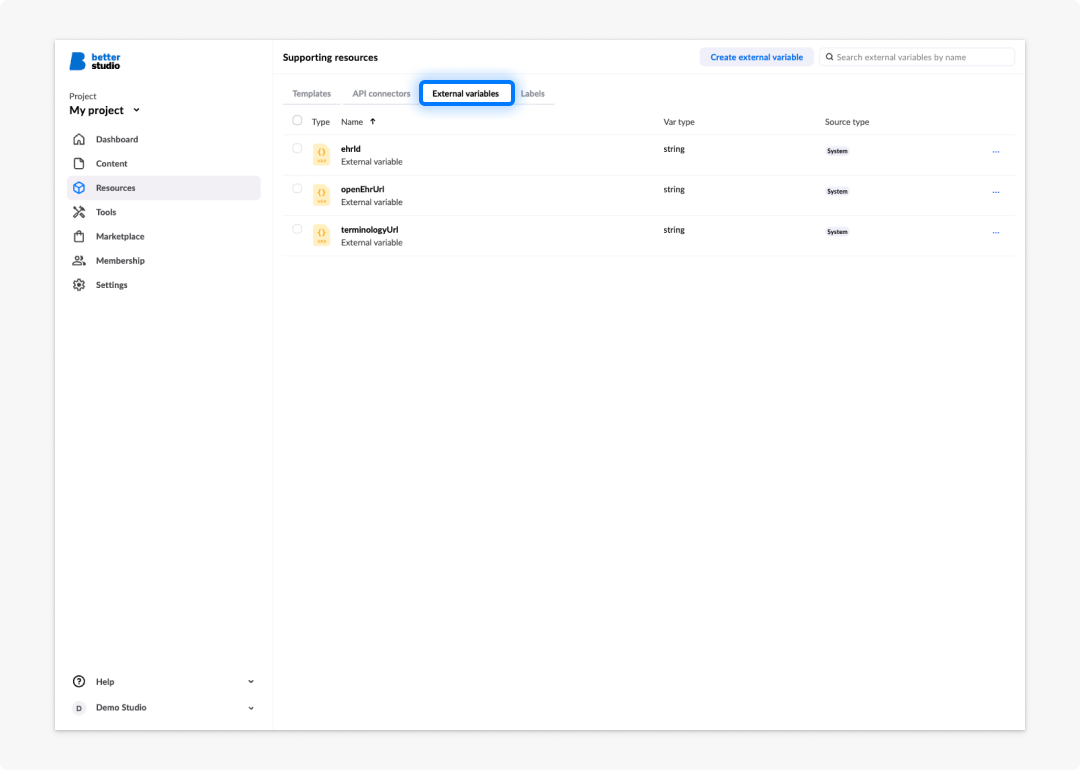
Three variables are predefined and cannot be removed or renamed:
| Variable | Description |
|---|---|
ehrId | The identifier for the EHR record. |
openEhrUrl | The URL of the connected openEHR server. |
terminologyURL | The URL used for terminology lookups. |
You can set a test value for each of these variables during form building. Any additional variables you create at the project level are also listed here.
For guidance on using variables inside forms, see External variables.
Labels
Labels are colour-coded tags that you assign to forms within a project. They make it easy to filter and group forms by function, clinical area, ward, or any other category that suits your workflow.
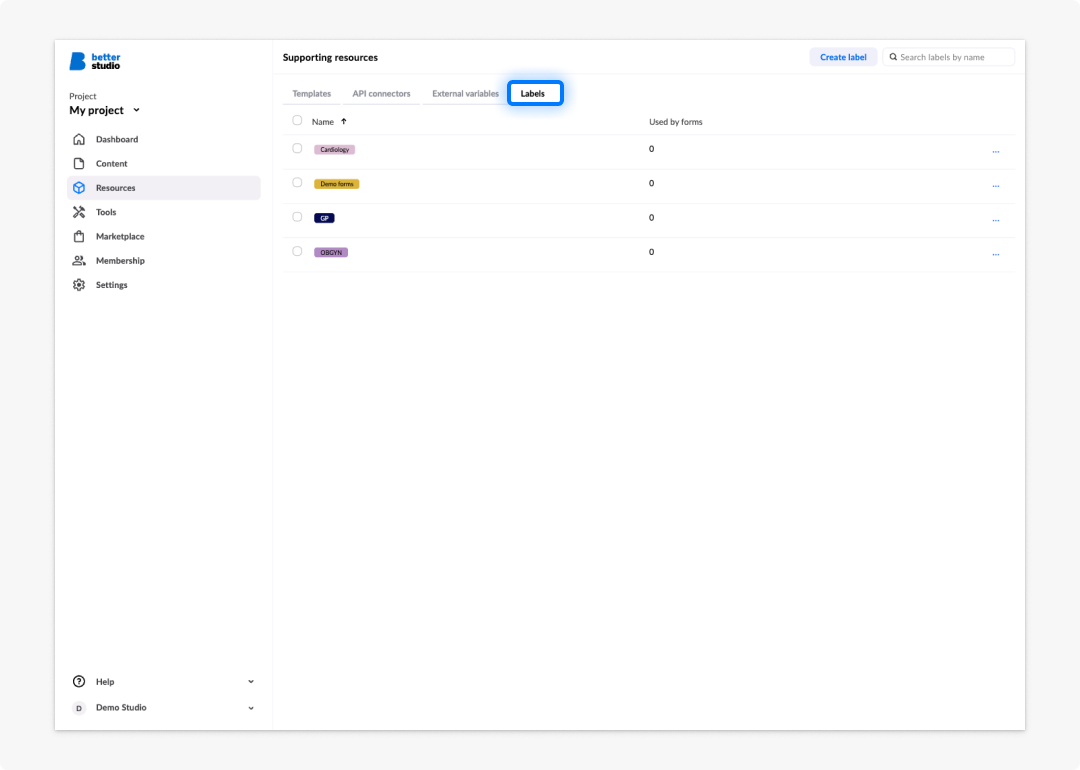
Each label has a name and a colour. You can provide the colour as a hex code (for example: #5f9ea0) or as a named CSS colour (for example: cadetblue). Use the randomise button next to the hex field to generate a colour automatically.
In the Labels section you can see their name, colour, and how many forms use it.
Create, update, or delete a label
To create a label:
- Go to Resources on your project.
- Click on Labels in the top menu.
- Click on Create new label in the top right corner.
- Define your label name and background colour in HEX or CSS.
- Save your new label.
To update a label:
- Go to Resources on your project.
- Click on Labels in the top menu.
- Click on the specific label you want to edit or click on the ellipsis icon at the far right end next to your desired label and click Edit.
- Make your changes.
- Save your updated label.
If you have used this label for any forms, the label will change everywhere it is used.
To delete a label:
- Go to Resources on your project.
- Click on Labels in the top menu.
- Click on the ellipsis at the far right end next to your desired label and click Delete.
- A modal window will open up, letting you know where the label is used.
- Click Delete form label.
Any forms that used the label will lose it, so make sure to either add a second label to them or consider the implication of losing this specific form categorisation. This action cannot be undone.
Assigning labels to forms
To add or remove a label on a form:
- Open your form with Form builder
- Click on Save. The Save new version modal will open up.
- Under Labels, add the labels you want to use from the dropdown menu.
- Save your form.
Once labels are assigned, you can filter the form list by label to quickly find related forms.
Frequently asked questions (FAQs)
What is the difference between an API connector and a data connector?
An API connector is defined at the project level and contains one or more API calls. A data connector is created inside a specific form and references one of those calls, making it available to components in that form.
Can I use the same API connector across multiple forms?
Yes. API connectors are project-level, so every form in the project can reference them.
What are the fixed external variables?
ehrId, openEhrUrl, and terminologyURL. You can set test values for each, but you cannot remove or rename them.
How do I update an imported OpenAPI definition?
Reimport it using the Import OpenAPI button. Studio updates the existing connector provided you have not renamed it since the original import.
Can I add API calls to an imported OpenAPI connector?
No. Duplicate the connector and edit the copy instead.