Summaries
This content is intended for beginner Studio users.
A summary is a standalone, document-like view that presents data collected across one or more forms in a read-only format. Summaries are separate from the forms that collect data. They retrieve and display what has already been recorded, without allowing edits.
You create summaries in Form builder, just like forms.
What a summary does
A summary retrieves data stored in the CDR by one or more forms and presents it as a structured, uneditable view. The person viewing the summary can read the recorded information but cannot modify it.
Summaries do not store data themselves. All data displayed in a summary was captured and stored by forms earlier in the clinical workflow.
Common use cases
| Use case | Who views it |
|---|---|
| Patient summary | Clinician |
| Discharge summary | Clinician and patient |
| Clinical assessment overview | Clinician |
| Patient-facing record | Patient |
Creating a summary
You can create a summary with the help of Form builder:
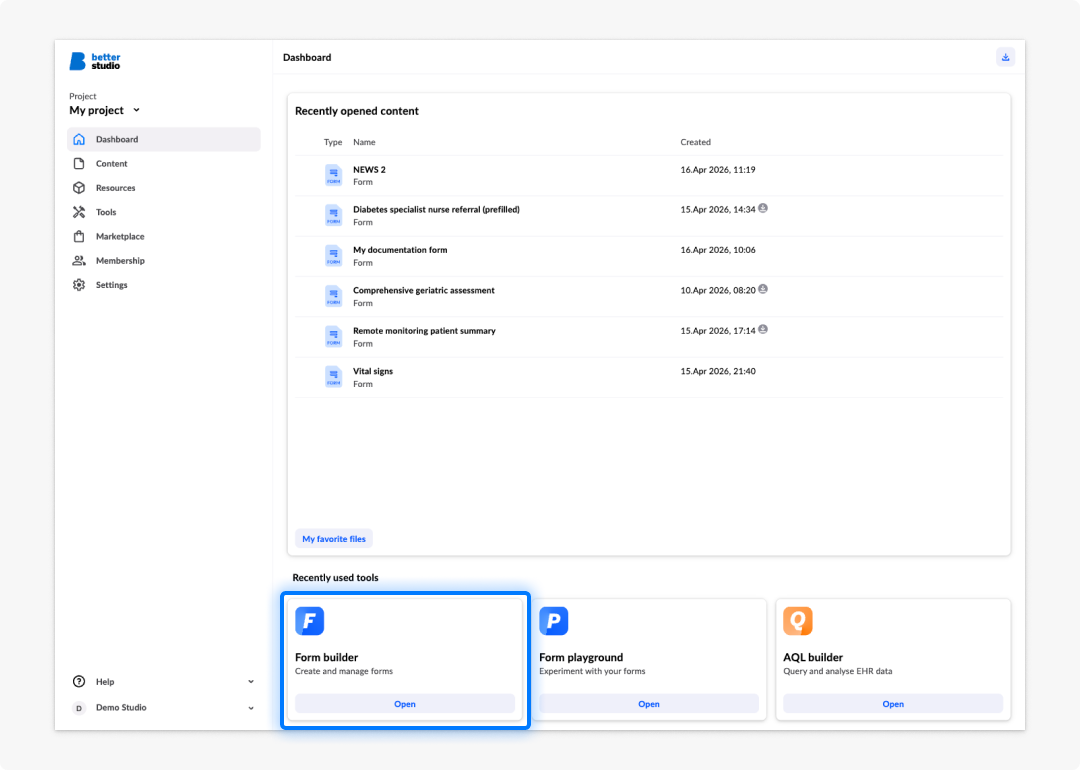
- Click on Form builder.
- Click on Create summary on the pop-up window.
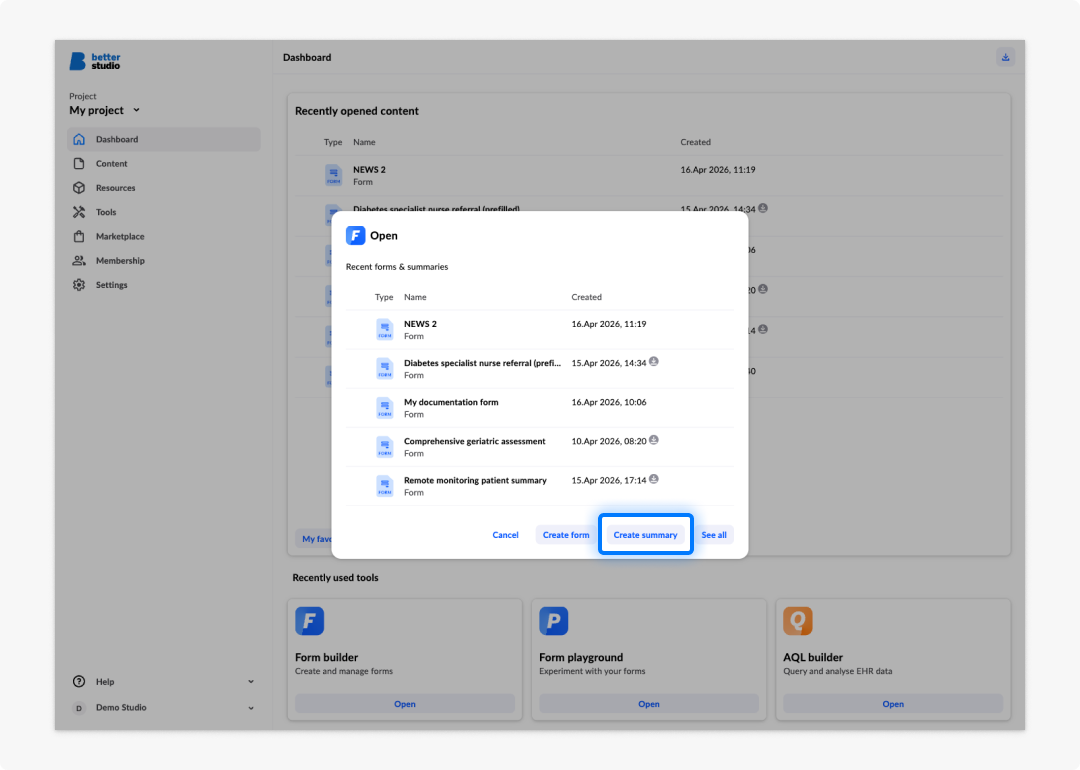
- The summary editor will open a blank page.
- Select from the left-side menu which form content you want to use for your summary.
- Select which form fields you want to use for your summary.
- You can add generic components, widgets, and variables to your summary.
Another options is to create a summary directly from a form:
- Click on one of the forms you are working on from the Recently opened content section or click on Form builder.
- If you clicked on Form builder, select your form from the Recent forms & summaries list or click See all.
- Select your desired form.
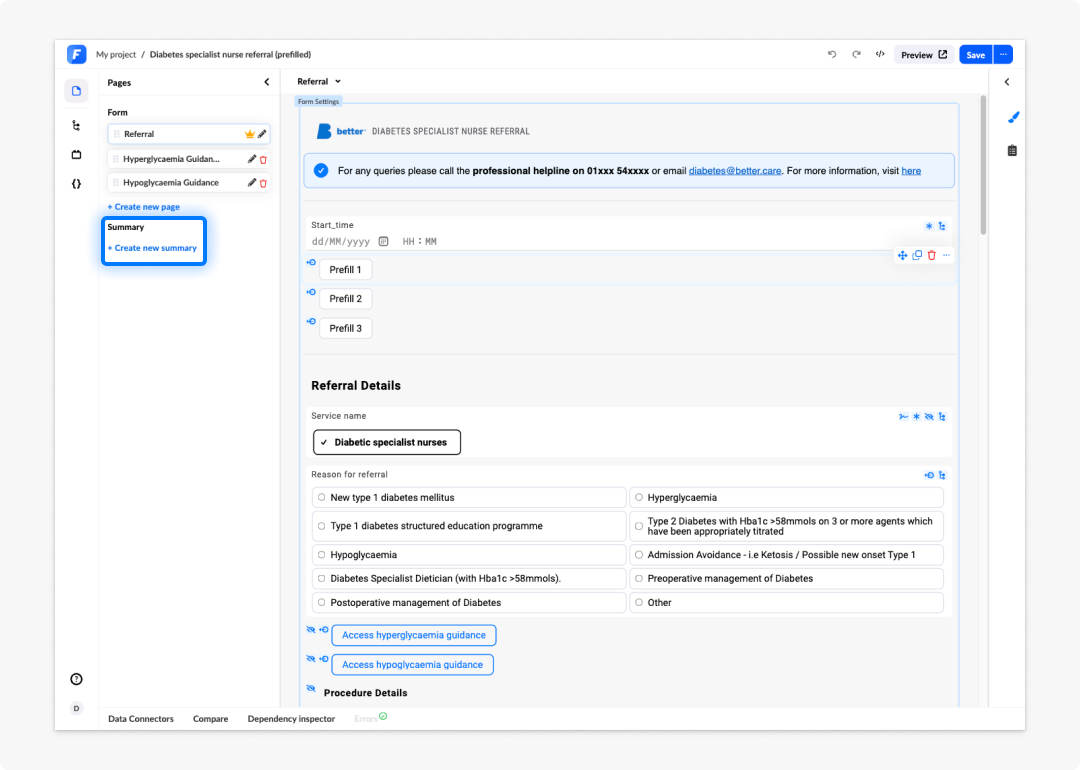
- Once the form is open, select Pages on the right menu.
- Click on Create new summary.
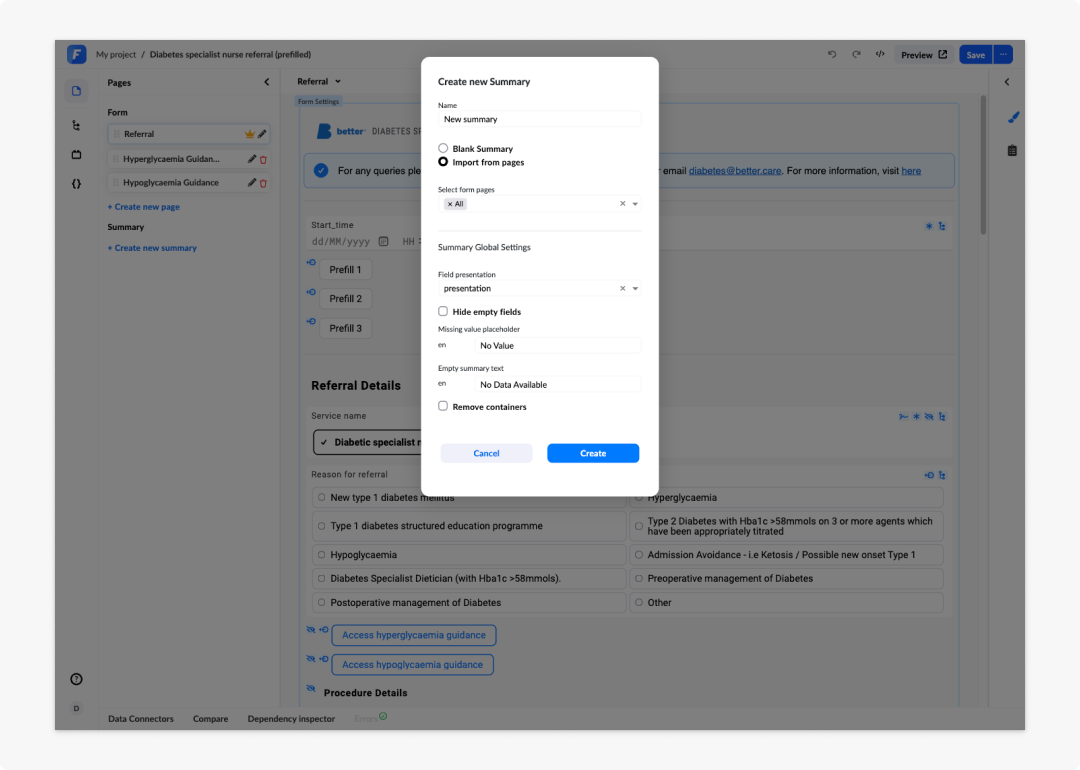
- Define your summary parameters and click Create.
- Rename and edit your summary.
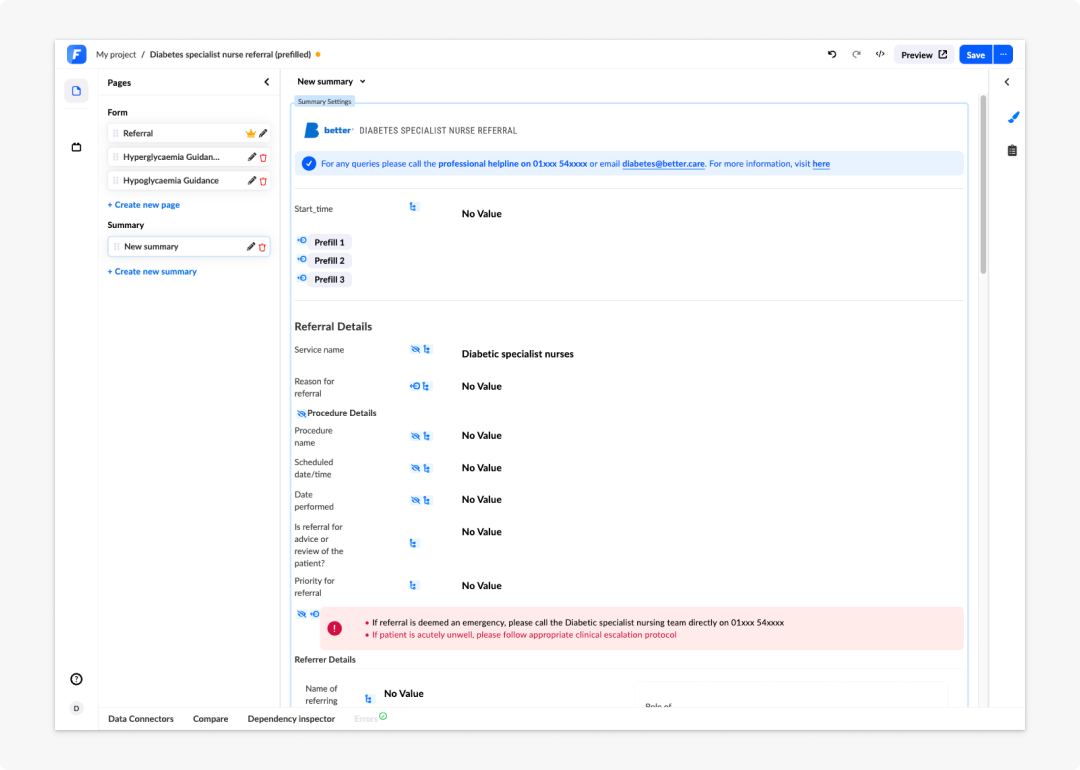
Configuring a summary
Once a summary is open and structured in the editor, use the right panel to configure how it displays data.
- Field presentation mode: Choose between readonly (fields appear as standard read-only inputs) and presentation (fields are styled for document-like display). Use presentation mode for clinical outputs such as patient summaries and discharge summaries.
- Hide empty fields: Enable this to suppress fields that have no recorded value, keeping the summary clean when not all data has been collected.
- Missing value placeholder: Set the text that appears when a field has no value — for example, Not recorded.
- Demo data set: Populate the summary with sample data to preview how it looks when filled out.
Frequently asked questions (FAQs)
What is a summary in Form builder?
A summary is a standalone, document-like, read-only view of data collected across one or more forms. It is separate from the forms that collect the data and is used to present that data in a structured, uneditable format.
Can a summary show data from multiple forms?
Yes. A summary can display data collected across different forms, as long as those forms store data to the CDR. The summary retrieves and displays that data as a unified view.
Is a summary stored in the CDR?
No. The summary is a display element only. The data it presents is stored in the CDR by the forms that collected it. The summary reads and presents that data without storing anything itself.
What are the two ways to create a summary in Studio?
You can create a summary directly from Form builder by clicking Create summary in the pop-up window. Alternatively, you can create one from within an existing form by opening the form, selecting Pages in the right menu, and clicking Create new summary.
What configuration options are available for a summary?
You can set the field presentation mode (readonly or presentation), enable Hide empty fields to suppress fields with no recorded value, set a missing value placeholder such as "Not recorded", and populate the summary with a demo data set to preview how it looks when filled out.