Form structure: pages, sections, fields, and components
This content is intended for beginner Studio users.
Every form in Better Studio is made up of three levels of structure:
- Pages
- Sections (containers)
- Fields or components
Understanding how these fit together helps you plan and build forms that are clear to use and easy to maintain.
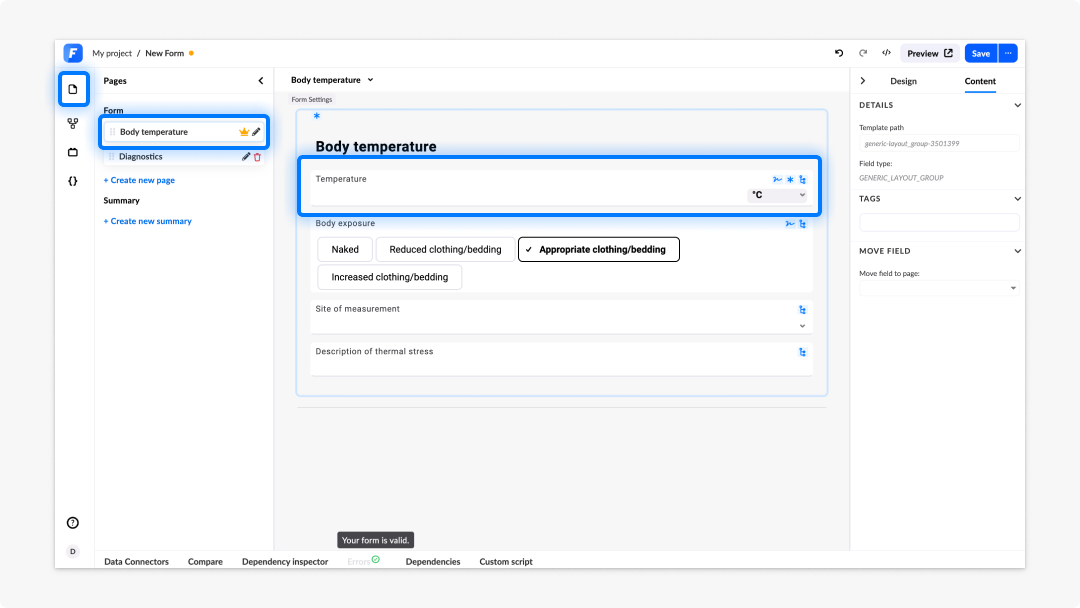
Pages
A page is the top-level division of a form. If a form has more than one page, users move through it step by step using navigation controls, typically a Next button, a Back button, or a page indicator at the top of the form.
Single-page forms are the most common for straightforward clinical data entry. Multi-page forms work well for longer assessments or workflows that benefit from grouping related information into distinct steps.
To add a page:
- Navigate to the content tree in the left panel of the Form builder editor.
- Select the Pages icon at the top.
- Click on Create new page
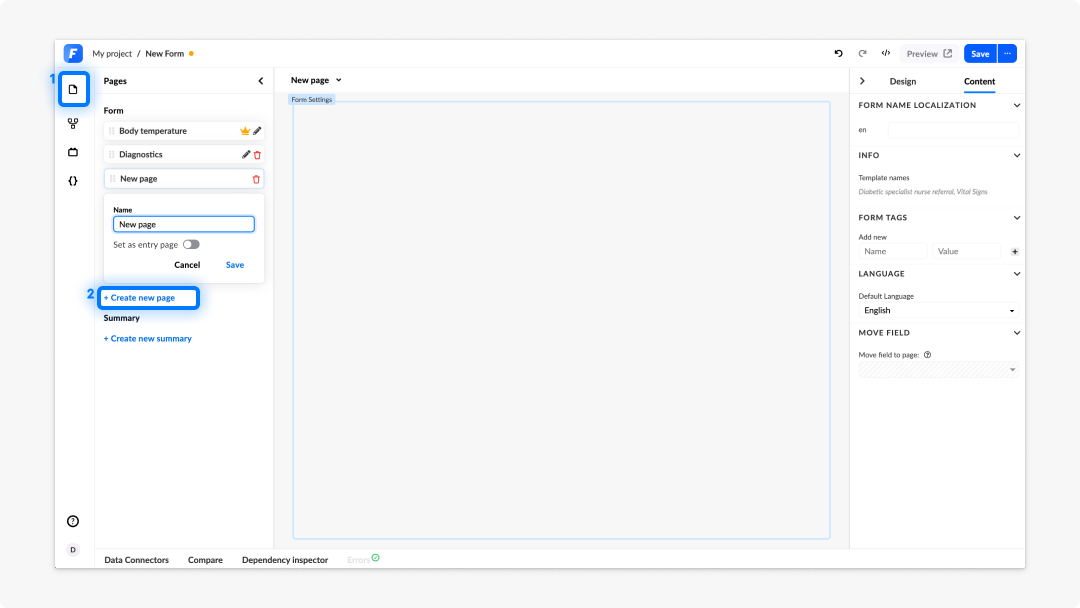
We recommend you rename your form pages based on the content they will contain.
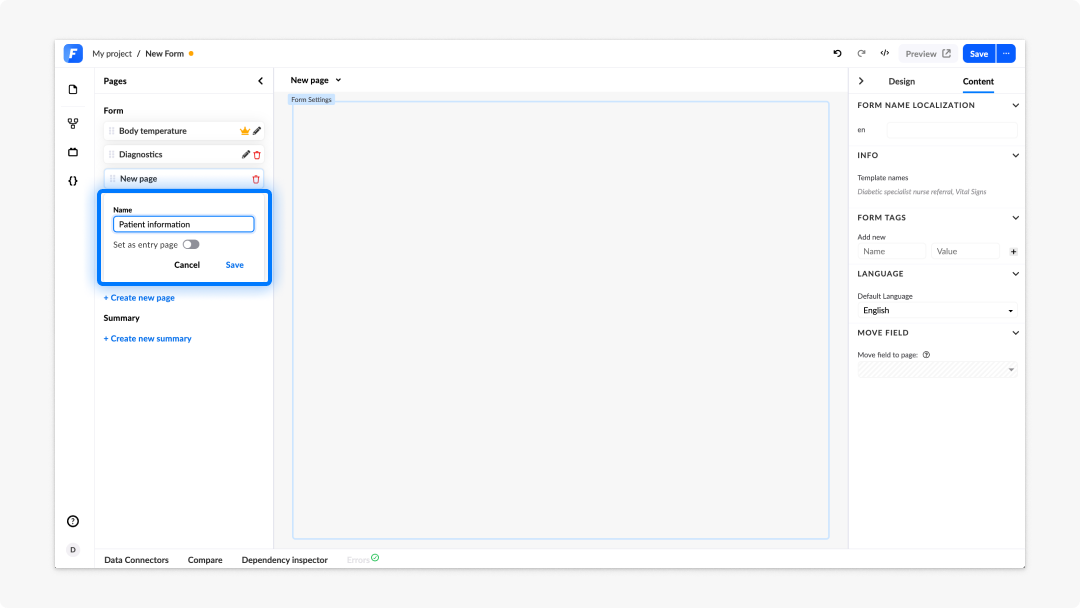
To reorder pages drag the pages up or down in the content tree.
Sections and containers
Within each page, you organise content using containers. A container is a grouping component that holds fields and other components. Containers do not require user navigation to reveal. Everything within a container is visible when the page is displayed.
Containers serve as a visual organisation tool for your form. Grouping related fields together will make it easier to scan when you are building and reviewing your created content.
You can nest containers within containers to create more complex layouts. Use this sparingly; deeply nested structures are harder to maintain.
To add a container:
- In the left panel, open the Generics tab.
- Drag a Container component onto the canvas.
- Use the property panel to configure its label, layout columns, and visibility settings.
Fields and components
Fields are the individual input components within a form such as text inputs, date pickers, dropdown menus, radio buttons, and so on. Fields are what users interact with to enter clinical data.
In Better Studio, fields come from two sources:
- Template fields: Fields derived from an openEHR template. These carry a predefined clinical structure and are automatically bound to the corresponding data path in the template. Adding a template field to your canvas means the data entered by users will be stored in a clinically structured way in the CDR.
- Generics components: Divided into generics and widgets. These are flexible input component not bound to a specific openEHR path by default. They include text inputs, checkboxes, radio buttons, and number fields, or specific widget structures like patient ID, blood pressure, or gauge chart. You can bind them to data paths manually, or use them for form navigation and UI purposes.
For a full list of available components and how to configure them, see Working with components and Specific form component types.
Form settings
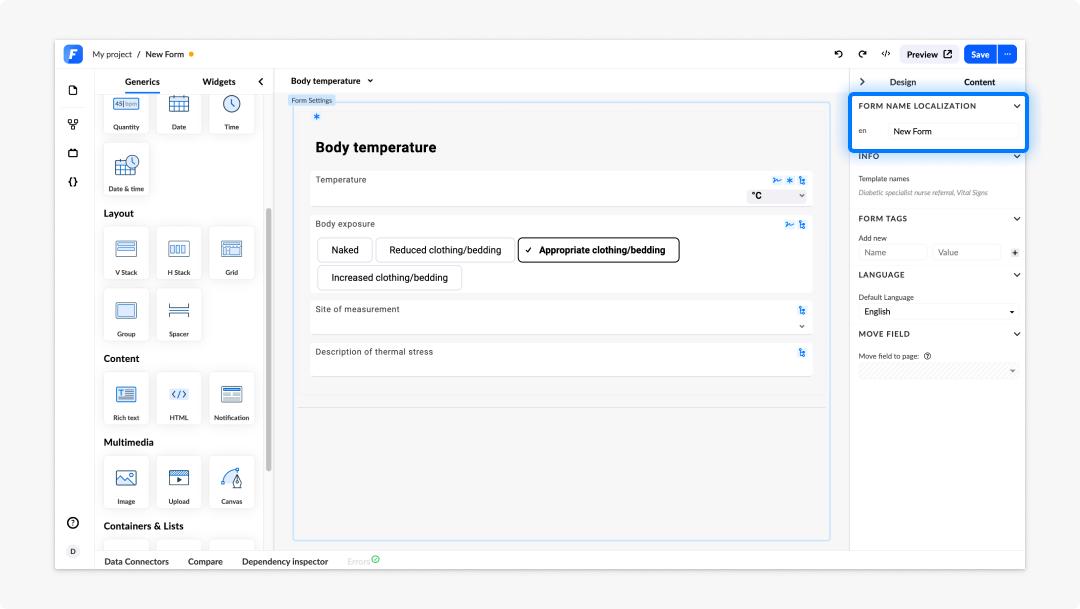
Form settings control the top-level properties of your form. Access them by deselecting all components on the canvas, or by opening the form settings panel from the editor toolbar.
Key settings include:
- Form name: The name displayed in the select screen and used as the form identifier.
- Language: The default language for the form (see the Advanced section for localisation).
- Form version: The current version of the form; incremented automatically on save.
Frequently asked questions (FAQs)
What is the difference between template fields and generic components?
Template fields come from an openEHR template and are automatically bound to a structured clinical data path in the CDR. Generic components are flexible input elements not bound to a specific path by default. They can be bound manually or used for navigation and UI purposes.
How do I remove a page, container, component or field from a form?
To delete a page, navigate to the Pages option in the Select menu and click on the red bin symbol next to the page you want to delete. To delete a container, field, or component from a form, select the element on the canvas, then use the delete option in the top right corner of your selected element. This can be only reversed by clicking on the back icon in the top most bar of the Form builder editor.
Can I nest containers inside other containers?
Yes. You can drag a container into an existing container to create nested layouts. Use this sparingly, as deeply nested structures are harder to maintain.