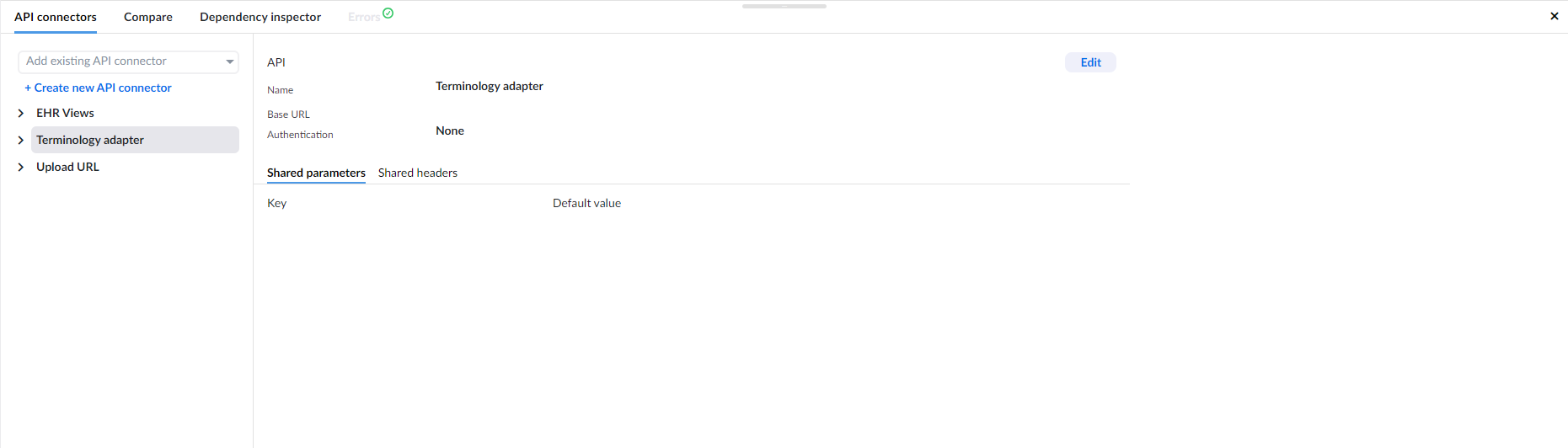
Creating and editing API connectors

You can create and edit API connectors from the Project dashboard.

To create a new API connector, go to Supporting content, select API connectors and, click the Create new API link. A new screen will be opened where you can add a new API connector. For detailed instructions on how to create API connectors, please refer to the API connectors page.

Alternatively, you can create a new custom data connector with a single API call directly from the form editor.

Using API calls in forms - Data connectors

If you want to add an API call to your form, you have two options to achieve this:

  1. Create a data connector that uses an existing API call from your project’s API connectors, or
  2. Create a new data connector and define the API call in it
warning
Data connectors created in versions of Studio 3.13 or later will not function with form renderer version 3.12 or earlier.

Data connector from project API connector

To use API calls from API connectors created in your project in your forms, you must first create a data connector or import an openApi definition. Then, add a call from the API connector to the data connector.

To create a data connector from a project API connector, click the + button in the Data Connectors tab in the bottom panel. Then, select Add resources from "Current project name" from the dropdown menu then follow these steps:

  1. Select the API call from the desired API connector by expanding the API connector and selecting the API call. In the right hand panel, you will see the details of the selected API call,
  2. click the Add button to add the API call to your form,
  3. set up the parameter and header overrides, and
  4. rename the data connector if needed.

Data connector from project AQL Views

If you have AQL views created in your EHR Server, you can use them in your forms by creating a data connector from the AQL views.

To create a data connector from a project API connector, click the + button in the Data Connectors tab in the bottom panel. Then, select Add resources from "Current project name" from the dropdown menu then follow these steps:

  1. Select the AQL Views tab
  2. click the Add button to add the AQL view to your form,
  3. set up the parameters
  4. run the aql view to see the response
  5. rename the data connector if needed.

Custom data connector

To create a custom data connector with a single API call, click the + button in the Data Connectors tab in the bottom panel. Then, select Custom API call from the dropdown menu. Next, configure the API call by following these steps:

  1. Name the data connector, e.g., Get All Users,
  2. select the API model: POST for create, GET for read, PUT for update/replace, PATCH for update/modify, or DELETE for delete,
  3. enter the API Model / Endpoint,
  4. select the response type you are expecting from the API call,
  5. select the authentication type: None, Basic, Bearer, or EHR Platform credentials,
  6. add parameters (optional),
  7. add headers (optional), and
  8. click the Run button

NOTE: When setting up POST, PUT, and PATCH methods, you also need to provide a response for initialization to be able to run the API call.

After running the API call, the response will appear in the Response tab. If the response is as expected, you can use the data connector in your form.

info
Custom data connectors are self-contained and embedded in the form itself. This is useful when creating a form that does not rely on global APIs.

Converting APIs to data connectors

To convert APIs created in Studio versions 3.12 or older into data connectors, open the Data Connectors tab at the bottom of the panel. There, you will see a list of APIs from previous versions that are currently being used.

Clicking on an API will present a message stating that the API is being used by the form and that it must be converted to a data connector before it can be edited. After creating the data connector, you will need to rebind the data in the components that used the API.

Local APIs will be converted into custom data connectors. Global APIs will be converted into data connectors that are added from the project's API connectors.

warning
Data connectors that have been converted will not work with form renderer versions 3.12 or older.

Important considerations before converting

When converting an API connector to a Data Connector, keep in mind the following considerations:

Rebinding requirements

If your form uses complex components such as image maps, converting the API connector will require rebinding the data source for each coded text field. For large image maps (for example, 30 or more areas), this process can be time-consuming because you will lose the existing image map connections during conversion.

Handling script references

If the API Connector you want to convert is used in scripts, you will need to update those scripts after conversion. This is because Data Connectors only have one field called “Data Connector name”, whereas API Connectors have two fields: “API Connector name” and “API Call name”. For your converted Data Connector to work correctly, you must:

  • Open the scripts that reference the old API Connector and API Call names.
  • Replace these references with the new Data Connector name.
  • Test the scripts to ensure they function as expected after the update.

Do you need to convert?

Not all API connectors must be converted. If your changes are limited to the API connector itself (for example, updating global settings such as authorisation), you can make those changes directly in the API connector without converting it. This approach helps avoid unnecessary rebinding work for minor updates.

When does conversion makes sense?

Convert only if you need to use Data Connector features or make structural changes that require rebinding.

Bind data from a data connector

After creating a data connector, you can bind the data to a form element. Follow these steps:

  1. Select the form element to which you want to apply the data connector, then select the connector in the Properties panel.
  2. Select the data source: list or single item.
  3. Bind the data by selecting which data element you want to show in the form element.
warning
Endpoint must return a list of data if your component requires a list of data.

Mock response

When using the mock response in an API call, you replace the data that the API call would return with your own mock data. These mock responses simulate, or 'mock', the behaviour of real responses and have similar characteristics to the authentic responses.

This allows you to quickly create prototypes or demos of complex forms that would otherwise rely on external API response data, which can sometimes be unpredictable and perhaps out of your control.

However useful, once you have created forms for actual production, you will most likely want to replace them with real data.

In the video below, we show you how to create and use a mock response.

Response for initialization

Response for initialization is used to tell the Studio what to expect when the call is made, and allows you to bind values to fields without depending on a test call response.

This can either be an object with real data that has all of your parameters, or you can make it up, so you have a template on which to bind all of your necessary fields, but in run-time this will be replaced with actual data from the API call. Common use case is when you need to bind values when you are configuring the multimedia field.

When creating or configuring a POST API call, most of the time you can't post anything to the resource server since you can't provide all the necessary data for posting.
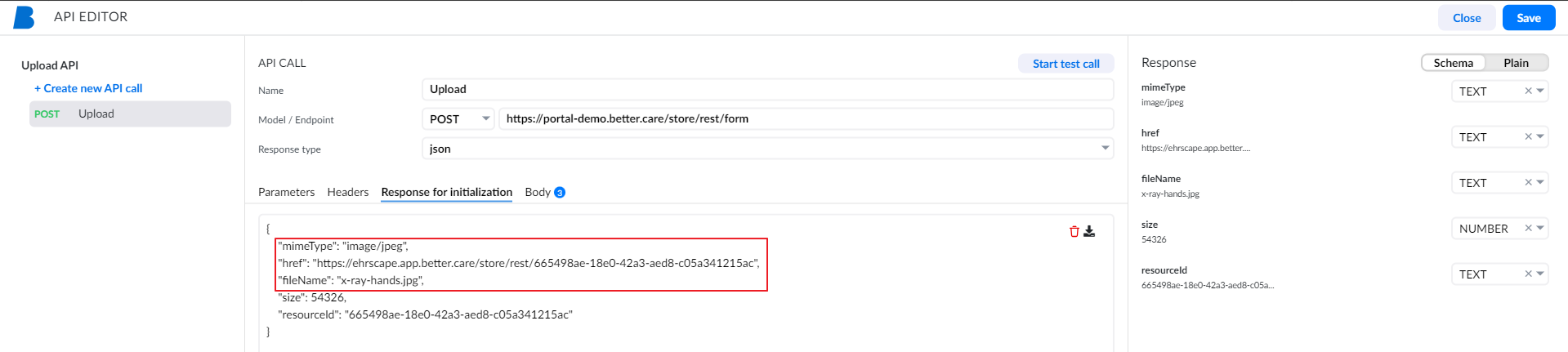
API first page However, when configuring a multimedia field, you still need to know which fields the POST call accepts and what response it returns so you can properly bind it to the field.
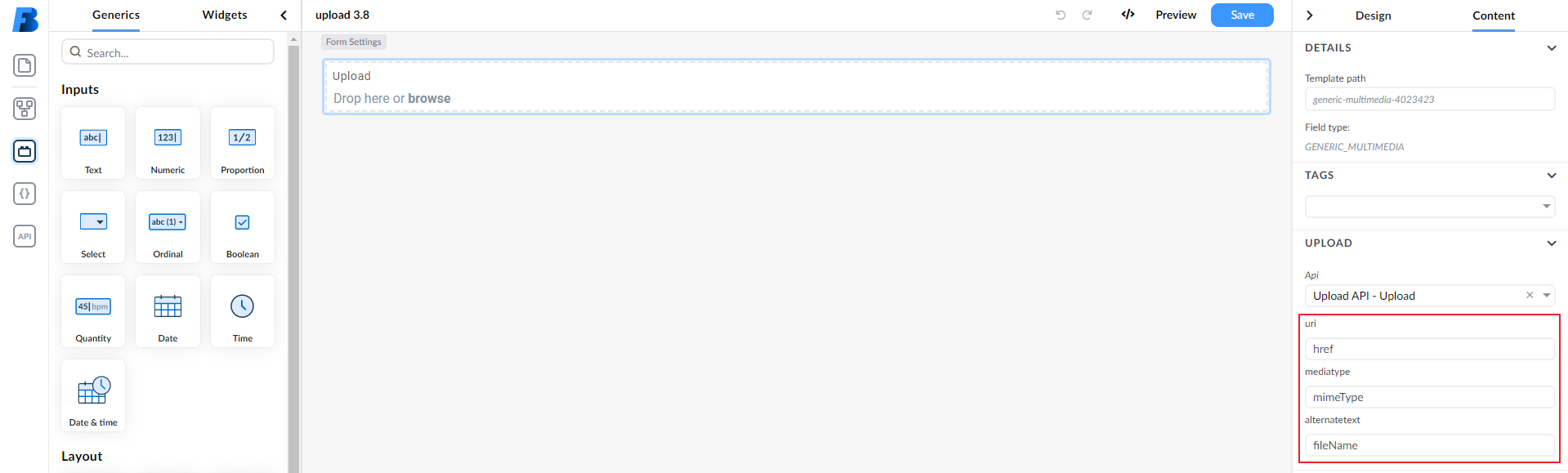
API first page

You can learn more about setting the upload field in the Upload section.

Another example is when you know that every call will not have all the values, but you still need an example with all key-value pairs, so you can bind them to the fields.

For further examples about using APIs in forms, see API examples.

Pre-request and Post-response scripts

Pre-request and Post-response scripts are used to set up the environment for the API call, or to process the response after the API call is executed.

When you are working with APIs, you may need to set some data before the API call is made. For example, you need to retrieve the authentication token from the server and set it as a header for all the API calls. This is where setting pre-request data on the API connector comes in handy, since it is executed before each API call.

Pre-requests can be defined on the API connector or on API calls. When a pre-request is defined on the API connector, it will be executed before each API call. When a pre-request is defined on an API call, it will be executed before that specific API call. If a pre-request is defined on both the API connector and the API call, the API call pre-request will be executed after the API connector pre-request.

You may also need to manipulate the response before it is displayed on the form, or used in other calls. Some use-cases of where manipulating the response can be useful:

  • combine data from multiple properties into one. For instance, you can combine firstName and lastName into one field called name
  • simplify paths by mapping complex nested data structures to a flat structure
  • create a clear data model tailored to your specific need by filtering response items and mapping them to a new data model

Structure of a pre-request script

In a pre-request script, you can use the api object to call other APIs, set variables, and more. The processor object is used to control the flow of the pre-request script. Each pre-request script must call processor.done() or processor.error() to continue with the next pre-request or original request.

warning
Each pre-request script must call processor.done() or processor.error() to continue with the next pre-request or original request.

In this sample code, the api object is used to call an API asynchronously, and the result is stored in a variable. Then the processor.done() function is called to continue with the next pre-request or original request. In case of an error, the processor.error() function is called.

api.callApi('myApi', 'myApiCall', false)
.then((result) => {
api.setVariableValue('myVariable', result);
processor.done();
})
.catch((e) =>
processor.error(e)
);

See an example of how to use pre-request to retrieve authentication tokens.

Structure of a post-response script

In a post-response script, you can manipulate the response received from api call before passing it to the caller of the api call. You can also use the api object to call other APIs, set variables, and more.

The processor is used to retrieve the result received from the api call through processor.responseData.

The processor object is also used to control the flow of the post-response script. Each post-response script must call processor.done(result) to pass the result back to the caller, or use processor.error() to signal that an error occurred.

/* store the original result in a variable for easier access */
let originalResult = processor.responseData;

/* create a new object where you manipulate the original result */
let result = {
property1: processor.responseData.firstProperty,
property2: processor.responseData.secondProperty
};

/* when you are done with the post-request, call processor.done(result) to finish the request */
processor.done(result);

See an example of how to use post-response to manipulate the response.